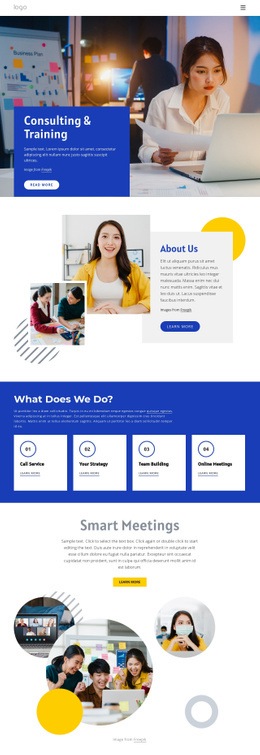
Innovation company Web Page Design



Edit Template Offline
2. Create new page and search for id 535587
Edit Template Online
Create Awesome Websites


Free Nicepage Builder
Keywords
Alternating Density Keeps the Long Page Legible
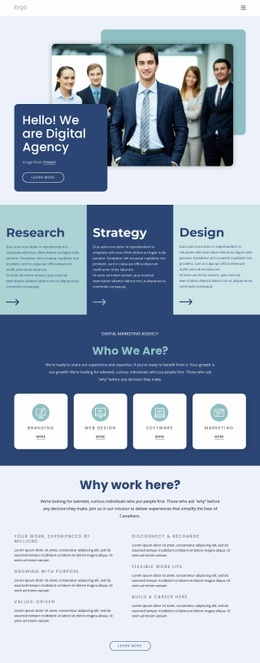
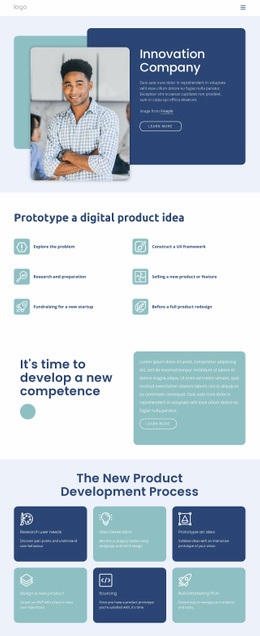
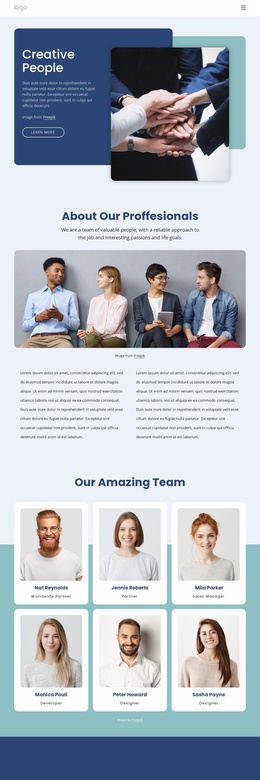
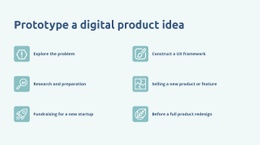
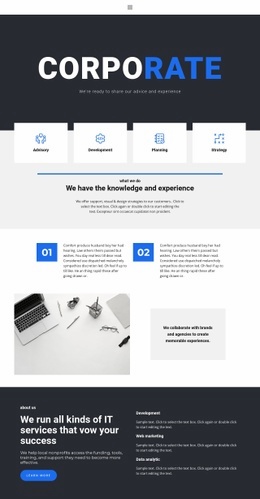
The opening composition establishes a strong visual entry by placing a dark text panel beside a large portrait image. That side-by-side relationship gives the page an immediate contrast between message and visual context, while the Learn more button provides a compact action inside the information panel. The following prototype section changes the density: six small icon-led items are arranged in two rows beneath a centered heading, allowing several use cases to be scanned without creating one tall text column.
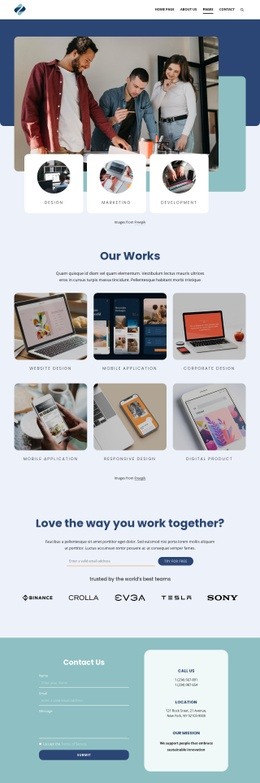
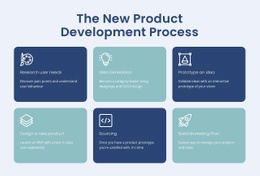
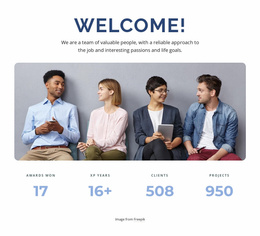
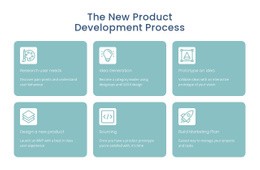
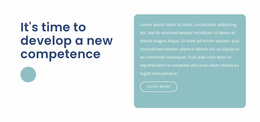
The page continues to vary its composition through a split competence section and a centered six-card process grid. The process cards alternate colors, so the repeated stages remain distinct while still reading as one group. A wide team photograph then creates a horizontal visual pause before four metrics and the service section restore a more information-heavy rhythm. The four capability columns sit beside a supporting image, balancing lists with visual material rather than stacking every service in the same format.
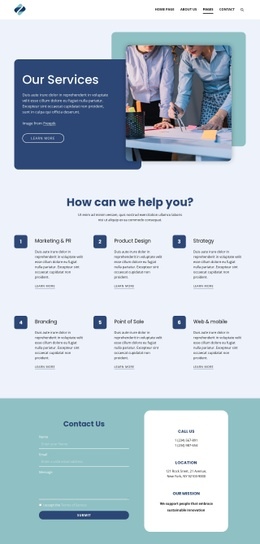
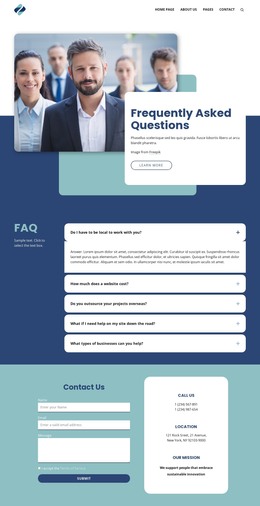
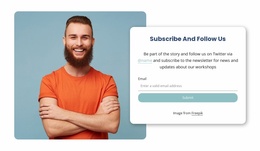
Three equal content cards provide another compact pattern, and the final contact block uses two columns to separate the form from phone, location, and mission information. The footer continues that division with company details, links, and subscription signup. These transitions in scale, alignment, color, and content density make the page composition suitable for explaining a complex consultancy without presenting every section as an identical grid.
Customize with Nicepage
Open this ready-made template in the Web Page Design Builder and customize it visually in the Nicepage editor. Replace demo content, edit page sections, and adapt the design to your project without rebuilding the template from scratch.
Design a Web Page Section by Section
Choose a Design for Each Section
Build the page from individual content sections instead of starting with a fixed full-page layout. Use Block Designs to browse ready-made sections for different purposes, including introductions, services, galleries, testimonials, contact forms, pricing, and other common parts of a web page. Search or filter the available designs to find a layout that fits the content you want to add.
Combine Blocks and Page Elements
Add selected Blocks to the page and arrange them in the order that supports the page's purpose. A hero section can introduce the main message, followed by services, benefits, portfolio content, testimonials, calls to action, or contact information.
Inside each section, use Web Page Elements such as Text, Image, Hyperlink, Grid, Gallery, and other elements to build and present the page content. Individual elements can be added and adjusted within the Blocks, giving you more control over the composition of each section without having to create the complete layout from scratch.
Refine the Page Layout and Flow
After assembling the main sections, adjust their content, spacing, backgrounds, images, typography, and element placement in the Nicepage editor. Reorder Blocks when necessary and refine the transition from one section to the next so the information hierarchy and visual flow remain clear throughout the page.
This workflow makes the template useful as a web page design that can be composed from ready-made sections, customized with individual page elements, rearranged, and adapted to the content and purpose of an individual page.