Machinery parks for industrial Web Page Design


Edit Template Offline
2. Create new page and search for id 48832
Edit Template Online
Create Awesome Websites


Free Nicepage Builder
Keywords
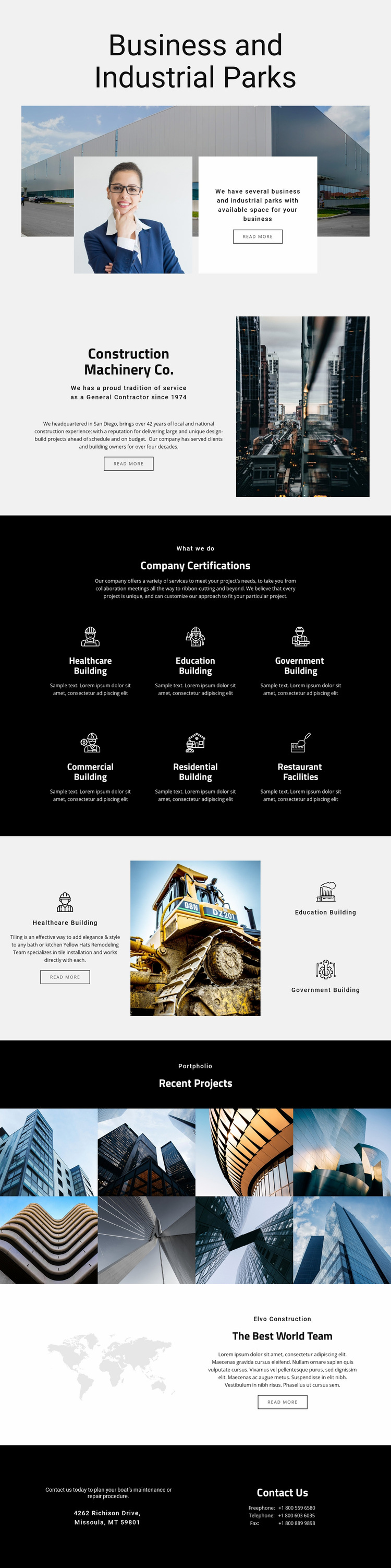
Alternating image scale keeps the construction page moving
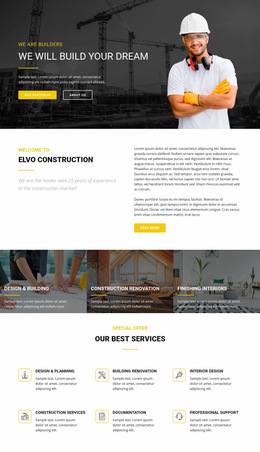
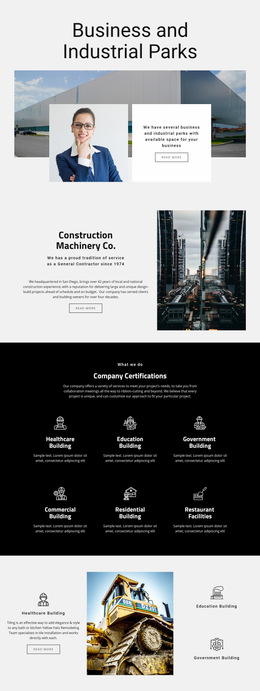
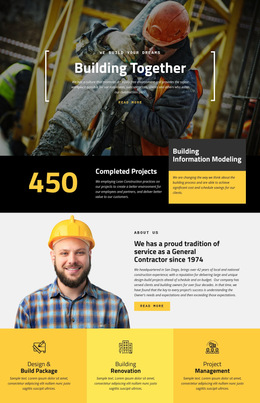
The opening composition places a centered Business and Industrial Parks heading above a wide industrial photograph, then interrupts the image with a white information card. This creates a strong change in scale and contrast at the top of the page. The next Split section reverses the visual relationship: text and a Read more action occupy the left while a tall construction-site image occupies the right. The page therefore avoids presenting every message in the same horizontal format.
A dark Features block introduces another compositional shift. Its centered label and heading sit above two rows of three evenly spaced icon-led items, making the six building categories easy to scan as a grouped capability statement. The following Grid section becomes more asymmetric, with a central construction-equipment photograph surrounded by one larger text card and two smaller category cards. This difference in density gives the page a visual pause and a more editorial focal point.
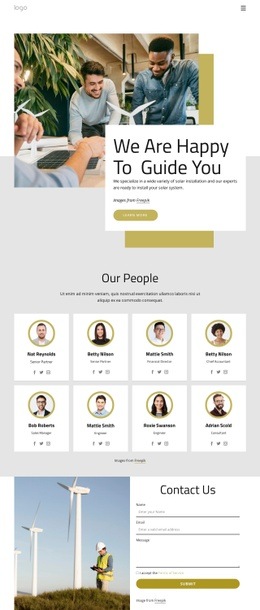
The Recent Projects gallery expands across the page with a black heading area and eight tightly arranged architectural images. After that high-density image field, the world-map identity section returns to a restrained two-column balance, pairing graphic space with centered company copy. The final contact block uses two equal dark panels to separate inquiry and address information from telephone and fax details. These transitions create a readable composition from introduction to capabilities, visual proof, identity, and response information.
Customize with Nicepage
Open this ready-made template in the Web Page Design Builder and customize it visually in the Nicepage editor. Replace demo content, edit page sections, and adapt the design to your project without rebuilding the template from scratch.
Design a Web Page Section by Section
Choose a Design for Each Section
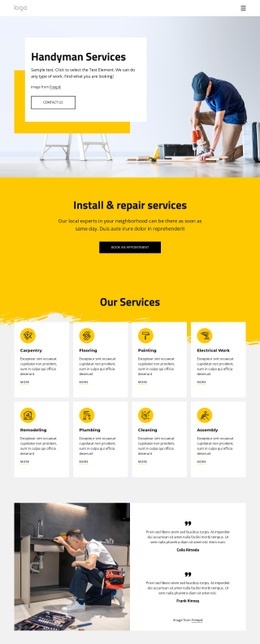
Build the page from individual content sections instead of starting with a fixed full-page layout. Use Block Designs to browse ready-made sections for different purposes, including introductions, services, galleries, testimonials, contact forms, pricing, and other common parts of a web page. Search or filter the available designs to find a layout that fits the content you want to add.
Combine Blocks and Page Elements
Add selected Blocks to the page and arrange them in the order that supports the page's purpose. A hero section can introduce the main message, followed by services, benefits, portfolio content, testimonials, calls to action, or contact information.
Inside each section, use Web Page Elements such as Text, Image, Hyperlink, Grid, Gallery, and other elements to build and present the page content. Individual elements can be added and adjusted within the Blocks, giving you more control over the composition of each section without having to create the complete layout from scratch.
Refine the Page Layout and Flow
After assembling the main sections, adjust their content, spacing, backgrounds, images, typography, and element placement in the Nicepage editor. Reorder Blocks when necessary and refine the transition from one section to the next so the information hierarchy and visual flow remain clear throughout the page.
This workflow makes the template useful as a web page design that can be composed from ready-made sections, customized with individual page elements, rearranged, and adapted to the content and purpose of an individual page.