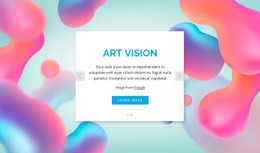
Gorgeous stylish home Web Page Design


Left Text, Right Imagery, and a Moving Page Rhythm
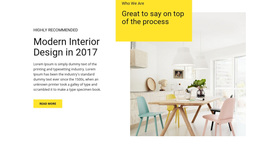
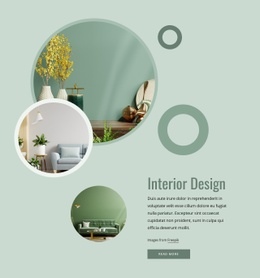
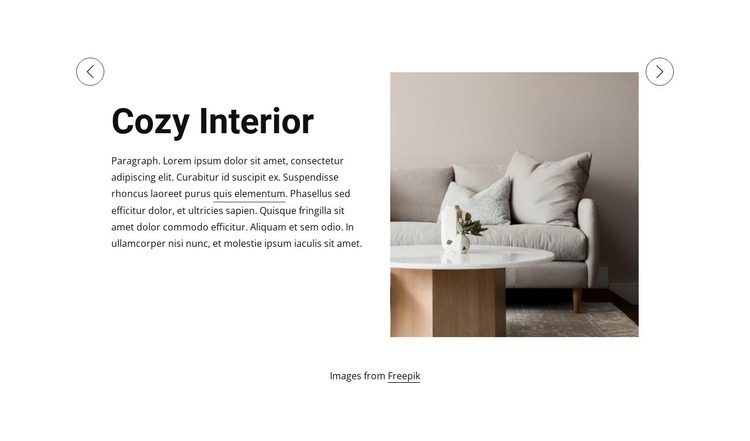
The block's page composition depends on a deliberate split between information and visual weight. The left column concentrates the heading, supporting paragraph, and inline text link, while the large image on the right gives each slide an immediate visual anchor. In the visible Cozy Interior state, the living-room image shows a sofa, cushions, table, and neutral tones; the second slide changes the content to Design Online while preserving the same spatial relationship.
Previous and next controls are positioned near the upper sides of the carousel, so they remain associated with the changing visual panel rather than interrupting the text column. This creates a compact transition unit that can separate broader page areas or introduce an interior-focused topic without filling the entire page with dense content. The two-slide count also keeps the interaction understandable: visitors move between a limited set of coordinated content states rather than scanning a large grid. Beneath the main composition, generous whitespace separates the carousel from the centered Images from Freepik attribution line. As one web-page design unit, the block contributes asymmetrical balance, controlled content density, and a repeatable image-to-text relationship that can be coordinated with the sections placed before and after it.
Customize with Nicepage
Open this ready-made template in the Web Page Design Builder and customize it visually in the Nicepage editor. Replace demo content, edit page sections, and adapt the design to your project without rebuilding the template from scratch.
Edit Template Offline
2. Create a new page or select existing
3. Click Add new block, search for id 1546344 and click enter
Edit Template Online
Create Awesome Websites


Free Nicepage Builder
Keywords
Design a Web Page Section by Section
Choose a Design for Each Section
Build the page from individual content sections instead of starting with a fixed full-page layout. Use Block Designs to browse ready-made sections for different purposes, including introductions, services, galleries, testimonials, contact forms, pricing, and other common parts of a web page. Search or filter the available designs to find a layout that fits the content you want to add.
Combine Blocks and Page Elements
Add selected Blocks to the page and arrange them in the order that supports the page's purpose. A hero section can introduce the main message, followed by services, benefits, portfolio content, testimonials, calls to action, or contact information.
Inside each section, use Web Page Elements such as Text, Image, Hyperlink, Grid, Gallery, and other elements to build and present the page content. Individual elements can be added and adjusted within the Blocks, giving you more control over the composition of each section without having to create the complete layout from scratch.
Refine the Page Layout and Flow
After assembling the main sections, adjust their content, spacing, backgrounds, images, typography, and element placement in the Nicepage editor. Reorder Blocks when necessary and refine the transition from one section to the next so the information hierarchy and visual flow remain clear throughout the page.
This workflow makes the template useful as a web page design that can be composed from ready-made sections, customized with individual page elements, rearranged, and adapted to the content and purpose of an individual page.