Walking tours Web Page Design


The White Panel and Portrait Create a Clear Mid-Page Composition
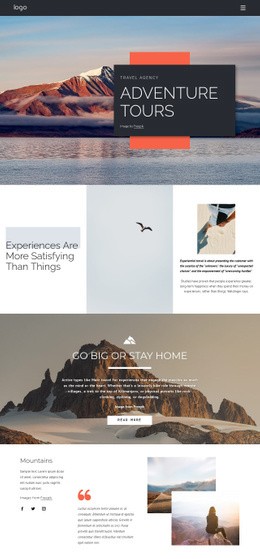
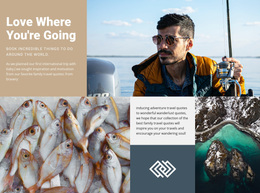
The white text panel carries the main information weight of this section, while the portrait image beside it provides a contrasting visual anchor. This division lets the “Walking Tours” heading and supporting paragraph remain easy to read without losing the travel context supplied by the imagery. The “Learn more” button sits within the same panel, so the action follows the message rather than appearing as a disconnected control. The image attribution line occupies a supporting position within that content group.
Behind these foreground elements, the coastal aerial photograph fills the available background and gives the section a broad horizontal presence. The composition therefore works through three layers: the background establishes place, the portrait adds a human focal point, and the white card concentrates information and action. Warm orange accents create an internal visual route from heading to button, while the pale peach page background and generous spacing help the block transition cleanly into surrounding sections.
Within one webpage, this arrangement can serve as a strong featured service region or a visual pause between denser content areas. Its static interaction keeps all important relationships visible at the same time, so the section does not depend on slides, tabs, or expandable controls to communicate its walking-tour message. The block contributes one composed unit to the page; neighboring blocks can handle introductions, additional offerings, booking details, or contact information.
Customize with Nicepage
Open this ready-made template in the Web Page Design Builder and customize it visually in the Nicepage editor. Replace demo content, edit page sections, and adapt the design to your project without rebuilding the template from scratch.
Edit Template Offline
2. Create a new page or select existing
3. Click Add new block, search for id 151573 and click enter
Edit Template Online
Create Awesome Websites


Free Nicepage Builder
Keywords
Design a Web Page Section by Section
Choose a Design for Each Section
Build the page from individual content sections instead of starting with a fixed full-page layout. Use Block Designs to browse ready-made sections for different purposes, including introductions, services, galleries, testimonials, contact forms, pricing, and other common parts of a web page. Search or filter the available designs to find a layout that fits the content you want to add.
Combine Blocks and Page Elements
Add selected Blocks to the page and arrange them in the order that supports the page's purpose. A hero section can introduce the main message, followed by services, benefits, portfolio content, testimonials, calls to action, or contact information.
Inside each section, use Web Page Elements such as Text, Image, Hyperlink, Grid, Gallery, and other elements to build and present the page content. Individual elements can be added and adjusted within the Blocks, giving you more control over the composition of each section without having to create the complete layout from scratch.
Refine the Page Layout and Flow
After assembling the main sections, adjust their content, spacing, backgrounds, images, typography, and element placement in the Nicepage editor. Reorder Blocks when necessary and refine the transition from one section to the next so the information hierarchy and visual flow remain clear throughout the page.
This workflow makes the template useful as a web page design that can be composed from ready-made sections, customized with individual page elements, rearranged, and adapted to the content and purpose of an individual page.