Musical explosion Web Page Design



Edit Template Offline
2. Create new page and search for id 1305316
Edit Template Online
Create Awesome Websites


Free Nicepage Builder
Keywords
Full-Width Images Give Way to Compact Event and Amenity Groups
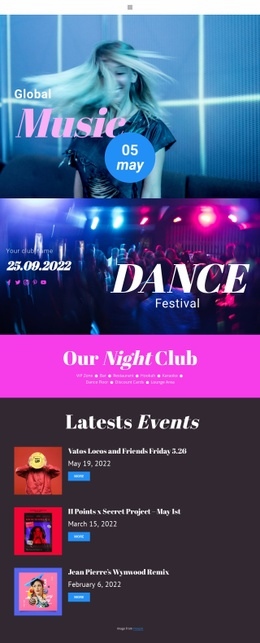
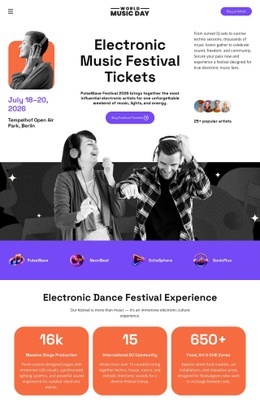
The page’s composition depends on changes in scale and density. The opening Global Music section uses a full-width performer image, oversized heading, and circular date badge to create a strong visual entry. A split Dance Festival banner follows, dividing event information and a large title across two image-led areas. This transition keeps the first part of the page varied while preserving the same nightlife subject.
The centered Our Night Club section deliberately compresses the composition into a horizontal list of amenities. VIP Zone, Bar, Restaurant, Hookah, Karaoke, Dance Floor, Discount Cards, and Lounge Area are presented as a compact information group rather than another large image block. The three event cards then introduce repeated modules, creating a more regular rhythm after the expansive opening sections. Their dark setting also separates event discovery from the bright amenities area.
Further down, the over-grid entertainment section restores visual layering by placing a colored text panel between nightclub photographs. The Festivals & Shows block returns to a full-width image with a show title and Buy ticket action, while the four-image performer gallery creates a horizontal visual band. A smaller two-panel gallery and the centered booking section provide a quieter close. These transitions between hero, split banner, list, cards, collage, gallery, and contact content make the individual page feel composed rather than uniformly stacked.
Customize with Nicepage
Open this ready-made template in the Web Page Design Builder and customize it visually in the Nicepage editor. Replace demo content, edit page sections, and adapt the design to your project without rebuilding the template from scratch.
Design a Web Page Section by Section
Choose a Design for Each Section
Build the page from individual content sections instead of starting with a fixed full-page layout. Use Block Designs to browse ready-made sections for different purposes, including introductions, services, galleries, testimonials, contact forms, pricing, and other common parts of a web page. Search or filter the available designs to find a layout that fits the content you want to add.
Combine Blocks and Page Elements
Add selected Blocks to the page and arrange them in the order that supports the page's purpose. A hero section can introduce the main message, followed by services, benefits, portfolio content, testimonials, calls to action, or contact information.
Inside each section, use Web Page Elements such as Text, Image, Hyperlink, Grid, Gallery, and other elements to build and present the page content. Individual elements can be added and adjusted within the Blocks, giving you more control over the composition of each section without having to create the complete layout from scratch.
Refine the Page Layout and Flow
After assembling the main sections, adjust their content, spacing, backgrounds, images, typography, and element placement in the Nicepage editor. Reorder Blocks when necessary and refine the transition from one section to the next so the information hierarchy and visual flow remain clear throughout the page.
This workflow makes the template useful as a web page design that can be composed from ready-made sections, customized with individual page elements, rearranged, and adapted to the content and purpose of an individual page.