Stylish things for home Web Page Design


Three Tall Images Create a Full-Height Visual Rhythm
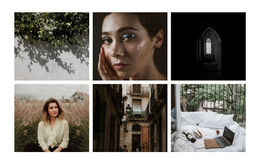
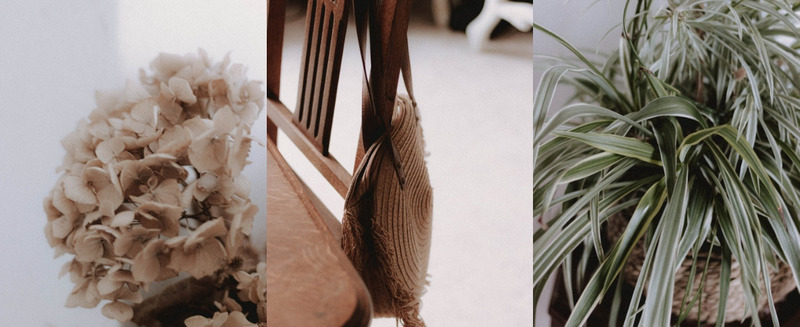
The three images sit edge to edge in equal vertical columns, so the block reads as a continuous visual band rather than a sequence of separate cards. Flowers, a woven chair, and a leafy plant provide related close-up subjects, while the soft neutral tones keep the gallery visually cohesive. Because there is no heading or explanatory text, the image relationships carry the entire message of the section.
The full-height columns give the block a strong compositional role within one webpage. It can introduce a visual pause, separate text-heavy sections, or provide a concentrated showcase between broader content areas. The equal widths create order, while the differences between botanical and interior details prevent the composition from feeling repetitive. Dark hover overlays with a fade treatment add a clear visual response when a visitor explores an individual image without disrupting the underlying alignment.
Lightbox behavior changes the gallery from a static three-image strip into an image-focused interaction. Visitors can first scan the complete column arrangement and then inspect a selected photograph in greater detail. For web page design, the main review points are the balance between the three tall images, the amount of visual weight each subject carries, and how the gallery transitions into the neighboring page content. The block remains one focused visual unit rather than a complete webpage structure.
Customize with Nicepage
Open this ready-made template in the Web Page Design Builder and customize it visually in the Nicepage editor. Replace demo content, edit page sections, and adapt the design to your project without rebuilding the template from scratch.
Edit Template Offline
2. Create a new page or select existing
3. Click Add new block, search for id 125336 and click enter
Edit Template Online
Create Awesome Websites


Free Nicepage Builder
Keywords
Design a Web Page Section by Section
Choose a Design for Each Section
Build the page from individual content sections instead of starting with a fixed full-page layout. Use Block Designs to browse ready-made sections for different purposes, including introductions, services, galleries, testimonials, contact forms, pricing, and other common parts of a web page. Search or filter the available designs to find a layout that fits the content you want to add.
Combine Blocks and Page Elements
Add selected Blocks to the page and arrange them in the order that supports the page's purpose. A hero section can introduce the main message, followed by services, benefits, portfolio content, testimonials, calls to action, or contact information.
Inside each section, use Web Page Elements such as Text, Image, Hyperlink, Grid, Gallery, and other elements to build and present the page content. Individual elements can be added and adjusted within the Blocks, giving you more control over the composition of each section without having to create the complete layout from scratch.
Refine the Page Layout and Flow
After assembling the main sections, adjust their content, spacing, backgrounds, images, typography, and element placement in the Nicepage editor. Reorder Blocks when necessary and refine the transition from one section to the next so the information hierarchy and visual flow remain clear throughout the page.
This workflow makes the template useful as a web page design that can be composed from ready-made sections, customized with individual page elements, rearranged, and adapted to the content and purpose of an individual page.