Digital Media Landing Page


Edit Template Offline
2. Create new page and search for id 14156
Edit Template Online
Create Awesome Websites


Free Nicepage Builder
Keywords
Portfolio Evidence Leads into Contact and Newsletter Response
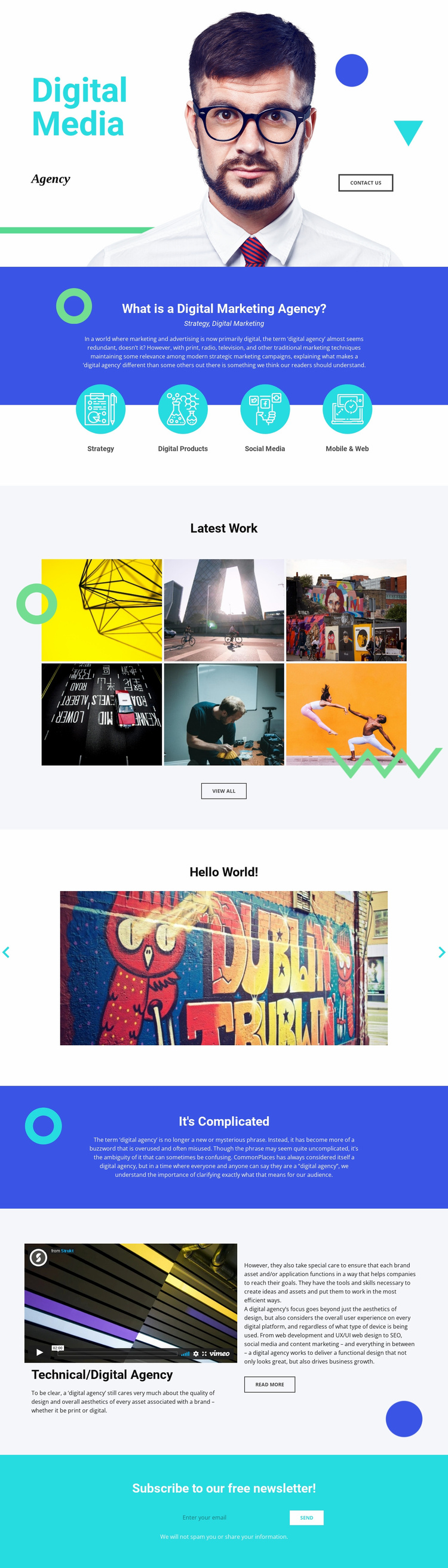
The opening hero gives the page an immediate subject and response point: Digital Media Agency appears alongside portrait imagery, geometric accents, and a Contact Us button. That first action can introduce the visitor to the agency before the page explains what digital marketing work involves. The blue explanatory panel then supplies context, while the four service categories—Strategy, Digital Products, Social Media, and Mobile & Web—translate the broad agency idea into recognizable areas of capability.
The Latest Work gallery is the strongest proof stage in the sequence. Six portfolio images allow the page to move from explanation to visible examples, and the View all action can support visitors who want to investigate further. The four-slide visual carousel adds a second form of evidence by presenting larger artwork examples with navigation controls. Together, these media sections give the page material to place between the initial agency message and the final response area rather than asking the visitor to act on a title alone.
The Technical/Digital Agency section and Read More button provide a more detailed route for visitors who need additional capability information. The page finally returns to a direct response through the bright newsletter band, which includes an email entry area, Send action, and privacy assurance text. This progression supports two verified response paths—contact inquiry and newsletter subscription—while keeping the service explanation and portfolio work connected to those actions.
Customize with Nicepage
Open this ready-made template in the Landing Page Builder and customize it visually in the Nicepage editor. Replace demo content, edit page sections, and adapt the design to your project without rebuilding the template from scratch.
Build a Landing Page Around One Conversion Goal
Focus on One Primary Action
Use the landing page to guide visitors toward one measurable response, such as requesting a quote, registering, subscribing, booking a consultation, applying for a service, or submitting an inquiry. Keep the primary call-to-action consistent across the important sections so the headline, supporting content, form, and CTA buttons work toward the same campaign goal instead of competing for attention.
Capture Leads With a Form
Use the Contact Form Element to add a contact, subscription, application, or other conversion form directly to the landing page. Customize the form fields, layout, labels, inputs, and button to collect the information required for your campaign while keeping the form focused on the action you want visitors to complete.
Nicepage also provides several form submission options. Form submissions can be sent to Email, stored as Leads, added to Google Sheets, passed to a custom URL or server endpoint, or used to populate a MailChimp mailing list. This provides practical options for collecting inquiries, registrations, subscriptions, applications, and other campaign responses.
Manage Leads and Campaign Responses
When submissions are stored as Leads, you can use Contact Form Leads to review the information collected through the landing page and use it for follow-up. Keep the form connected to the same offer and primary CTA presented throughout the page so visitors move from the campaign message to a clear conversion action.
This workflow makes the template suitable for landing pages where the offer, content, call-to-action, form, and lead collection process work together toward one defined conversion goal.

More from Art & Design Landing Pages
-
Free Website Builder SoftwareDownload