Our medicine services Landing Page


Six Service Benefits Lead Toward Scheduling Information
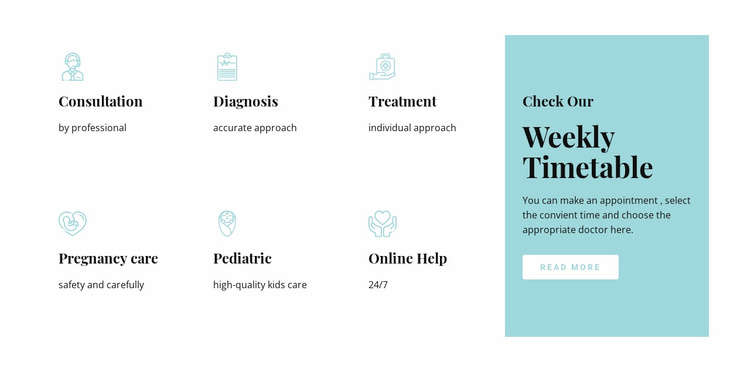
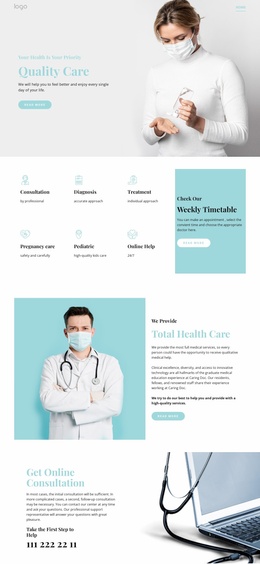
The six named service entries give this block a useful middle-stage role in a healthcare landing-page sequence. Consultation, Diagnosis, Treatment, Pregnancy care, Pediatric, and Online Help translate a broad medical offering into six short areas that visitors can scan in two rows of three. The circular line icons reinforce the separation between items, while the supporting descriptions add context before a visitor reaches a later decision or response point.
The Weekly Timetable panel shifts the section from general service explanation toward practical scheduling context. Its appointment and doctor-selection guidance answers the natural next question—how to choose a convenient time and appropriate doctor—and the Read more button offers a contained route to more information. Because the block does not establish a complete form or direct booking interface, its safest conversion role is to clarify benefits and encourage the next step rather than claim to complete an appointment.
Placed between an introductory message and a verified response area elsewhere in the sequence, the block can reduce uncertainty by showing both service breadth and scheduling direction. Its white background keeps the six-item overview readable, while the contrasting timetable panel creates a visual decision point. The section therefore supports action through explanation and progression, not through an invented primary campaign endpoint.
Customize with Nicepage
Open this ready-made template in the Landing Page Builder and customize it visually in the Nicepage editor. Replace demo content, edit page sections, and adapt the design to your project without rebuilding the template from scratch.
Edit Template Offline
2. Create a new page or select existing
3. Click Add new block, search for id 121715 and click enter
Edit Template Online
Create Awesome Websites


Free Nicepage Builder
Keywords
Build a Landing Page Around One Conversion Goal
Focus on One Primary Action
Use the landing page to guide visitors toward one measurable response, such as requesting a quote, registering, subscribing, booking a consultation, applying for a service, or submitting an inquiry. Keep the primary call-to-action consistent across the important sections so the headline, supporting content, form, and CTA buttons work toward the same campaign goal instead of competing for attention.
Capture Leads With a Form
Use the Contact Form Element to add a contact, subscription, application, or other conversion form directly to the landing page. Customize the form fields, layout, labels, inputs, and button to collect the information required for your campaign while keeping the form focused on the action you want visitors to complete.
Nicepage also provides several form submission options. Form submissions can be sent to Email, stored as Leads, added to Google Sheets, passed to a custom URL or server endpoint, or used to populate a MailChimp mailing list. This provides practical options for collecting inquiries, registrations, subscriptions, applications, and other campaign responses.
Manage Leads and Campaign Responses
When submissions are stored as Leads, you can use Contact Form Leads to review the information collected through the landing page and use it for follow-up. Keep the form connected to the same offer and primary CTA presented throughout the page so visitors move from the campaign message to a clear conversion action.
This workflow makes the template suitable for landing pages where the offer, content, call-to-action, form, and lead collection process work together toward one defined conversion goal.

More from Medicine & Science Blocks
-

-

-
-
-
-
-
-
-
-
-
Free Website Builder SoftwareDownload
-
-
-
-
-
-
-
-
-
-










More from Grid Repeater Blocks
-

-
-
-
-
-
-
-
-
-
-
Free Website Builder SoftwareDownload
-
-
-
-
-
-
-
-
-
-