Lets worktogether HTML Template


A Ready-Made Contact Prompt for Static HTML Pages
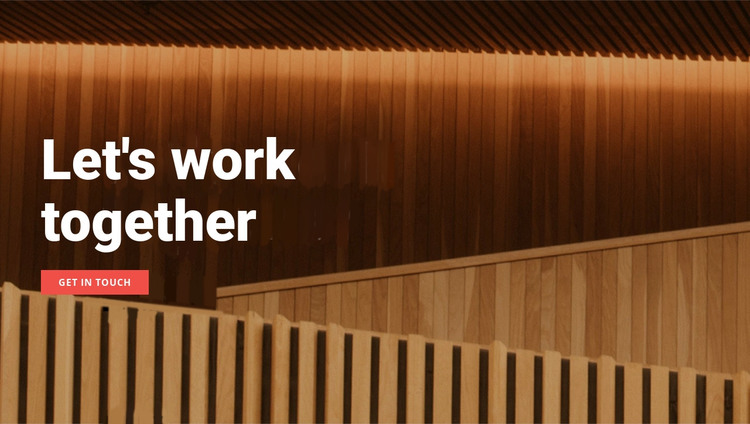
The section already covers the essential content of a compact contact prompt: a clear invitation, one direct button, and a full-width image that establishes the visual setting. “Let's work together” gives the area a recognizable purpose, while “get in touch” states the intended response without adding competing links or secondary content. The left alignment keeps both text elements together, and the wood-paneled interior image gives the section visual presence across its full width.
Used inside a static HTML page, this block can sit near the end of a broader content sequence as a transition from information toward contact. The surrounding page can supply navigation, introductory material, project details, or a fuller contact area, while this section retains its narrower role as an invitation to continue the conversation. Its static interaction also keeps the arrangement straightforward: visitors see the message and the single action without needing to operate a carousel, form, or expandable panel.
The contrast system supports ready-made placement. Large white type remains distinct against the warm, darker image, and the coral button creates a visible response cue. Together, these elements form a finished section arrangement that can be adapted to the containing HTML page without changing the block's core message.
Customize with Nicepage
Open this ready-made template in the HTML Builder and customize it visually in the Nicepage editor. Replace demo content, edit page sections, and adapt the design to your project without rebuilding the template from scratch.
Edit Template Offline
2. Create a new page or select existing
3. Click Add new block, search for id 42540 and click enter
Edit Template Online
Create Awesome Websites


Free Nicepage Builder
Keywords
Export and Use This Template as an HTML Website
Create a Portable HTML Website
When the template is ready, use the HTML Export option to create a static website with the files required for deployment. The exported website can be used independently of the Nicepage editor and deployed on your preferred hosting.
Nicepage also provides SEO settings and optimization features, including Page Titles and Descriptions, Canonical settings, headings, image Alt Text, and other page-level properties that help prepare the website for search engines.
Deploy Without a CMS
Upload the finished website to the hosting environment that fits your project. Because the exported site does not require WordPress, Joomla, or another CMS to deliver its pages, it can be placed on your own server, uploaded to a hosting provider, or deployed through an existing web infrastructure.
Hand Off the Website Files
The generated website files can also be provided to a client, developer, or hosting team. They remain available outside the Nicepage editor for deployment, technical review, or project-specific development when additional work is required.
This workflow makes the template a practical foundation for a portable static website that can be exported from the Nicepage editor and deployed independently.