Consultant of the Year HTML Template


Purple Heading Panel Shapes a Ready-Made Consulting Section
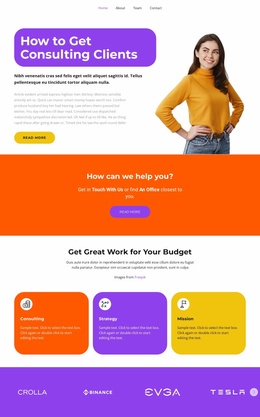
The purple heading panel immediately identifies the section as a focused information area, while the two text blocks provide room for both an introduction and a longer explanation. The heading, “How to Get Consulting Clients,” establishes the subject without requiring the surrounding page to repeat the topic. Below it, the visible “read more” action offers a clear route to continue beyond the excerpt, but the section remains centered on information rather than trying to carry an entire page journey.
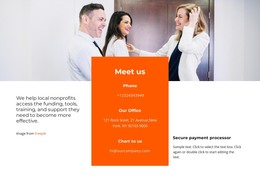
The full-height portrait on the right gives the static arrangement a strong visual edge. Its cutout treatment sits beside the left-hand copy instead of interrupting the reading column, so the image supports the consulting theme while the text retains the main informational role. The white background, compact paragraph spacing, dark text, and muted gray body copy create a restrained base for the purple panel and yellow action color.
Used inside a static HTML page, this block can serve as a prepared consulting article or explanatory section. The containing page can provide navigation and neighboring content, while this section preserves its own heading, article-style copy, portrait treatment, and continuation action.
Customize with Nicepage
Open this ready-made template in the HTML Builder and customize it visually in the Nicepage editor. Replace demo content, edit page sections, and adapt the design to your project without rebuilding the template from scratch.
Edit Template Offline
2. Create a new page or select existing
3. Click Add new block, search for id 3653916 and click enter
Edit Template Online
Create Awesome Websites


Free Nicepage Builder
Keywords
Use This Block in a Static HTML Page
Start With a Ready-Made Section
A block provides one prepared content area that can be combined with other sections to build a static HTML page. Customize its text, images, spacing, colors, and other elements in the Nicepage editor while keeping the block focused on its own purpose, such as services, testimonials, pricing, contact information, or visual presentation.
Export the Containing HTML Project
When the page or website that contains the block is ready, use HTML Export to create the files required for a static HTML project. The export applies to the containing page/site rather than turning one individual block into a complete website by itself.
Reuse the Section Within the Project
The same block design can be adapted as one content section within a larger static site. Other Blocks can provide navigation, introductions, portfolios, forms, footers, and additional page content while this section keeps its own verified content and layout role.
This workflow makes the block useful as a ready-made section inside a static HTML implementation, with export and deployment handled at the page or website level.