Get in touch to fiind out how we can help HTML Template


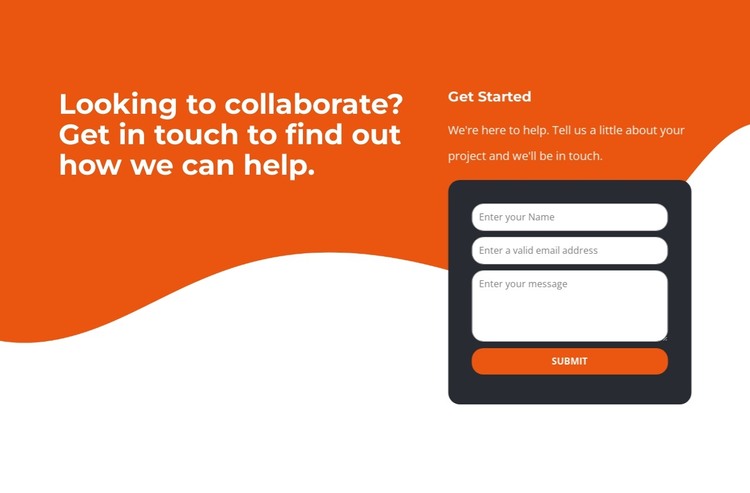
A complete inquiry section for a static HTML page
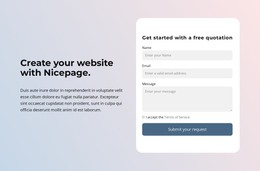
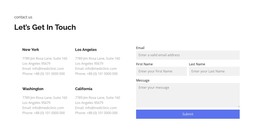
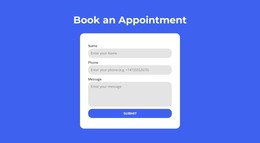
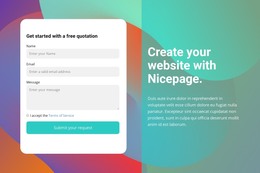
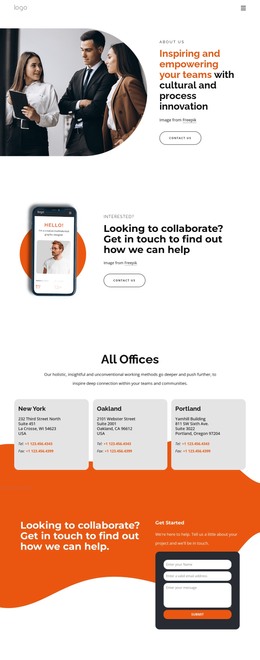
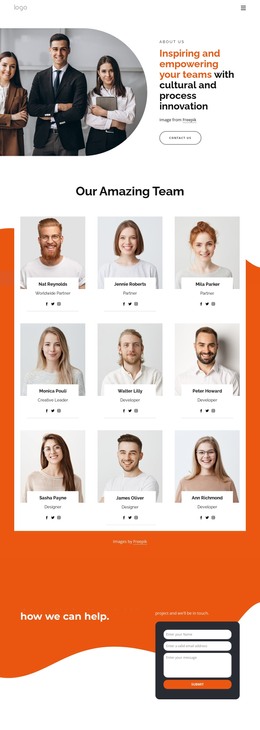
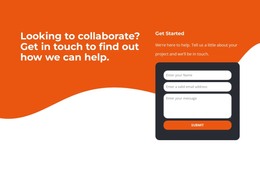
The heading, guidance, fields, and submission control already form one focused contact arrangement. On the left, the collaboration message explains the reason for reaching out. On the right, “Get Started” introduces a short prompt before the visitor reaches the form, where name, email, and message inputs provide a straightforward structure for an inquiry. The dark rounded panel gives the response area a defined boundary, making it readable as one finished section rather than a loose collection of controls.
Placed inside a static HTML page, this block can carry the page’s collaboration or contact message while other sections provide navigation, background information, services, or follow-up content. Its orange background, white bold type, generous spacing, and orange rounded controls are already coordinated within the section, so the containing page does not need to invent the basic visual relationship. The block remains one ready-made static section, not a complete page or website. If the surrounding project uses HTML export, the export applies to the containing page or site, while this block retains its specific role as a two-column inquiry area.
Customize with Nicepage
Open this ready-made template in the HTML Builder and customize it visually in the Nicepage editor. Replace demo content, edit page sections, and adapt the design to your project without rebuilding the template from scratch.
Edit Template Offline
2. Create a new page or select existing
3. Click Add new block, search for id 2633932 and click enter
Edit Template Online
Create Awesome Websites


Free Nicepage Builder
Keywords
Export and Use This Template as an HTML Website
Create a Portable HTML Website
When the template is ready, use the HTML Export option to create a static website with the files required for deployment. The exported website can be used independently of the Nicepage editor and deployed on your preferred hosting.
Nicepage also provides SEO settings and optimization features, including Page Titles and Descriptions, Canonical settings, headings, image Alt Text, and other page-level properties that help prepare the website for search engines.
Deploy Without a CMS
Upload the finished website to the hosting environment that fits your project. Because the exported site does not require WordPress, Joomla, or another CMS to deliver its pages, it can be placed on your own server, uploaded to a hosting provider, or deployed through an existing web infrastructure.
Hand Off the Website Files
The generated website files can also be provided to a client, developer, or hosting team. They remain available outside the Nicepage editor for deployment, technical review, or project-specific development when additional work is required.
This workflow makes the template a practical foundation for a portable static website that can be exported from the Nicepage editor and deployed independently.

Design Set (14)
-

-
-
-
-
-
Free Website Builder SoftwareDownload
-
-
-
-




More from Contact Form Blocks
-
-
-
-
-
-
-
-
-
-
-
Free Website Builder SoftwareDownload
-
-
-
-
-
-
-
-
-
-