Mind and body in balance Html Code Example



The Contact Area Creates a Natural Extension Point
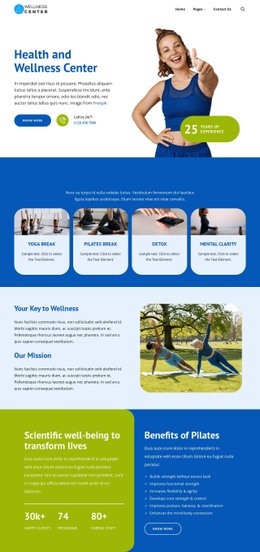
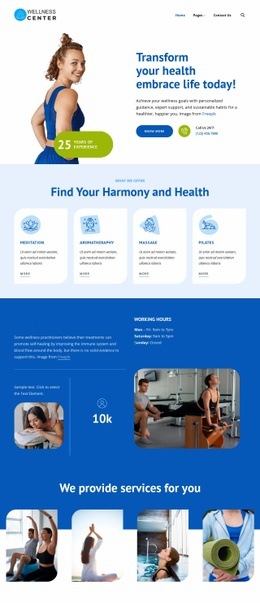
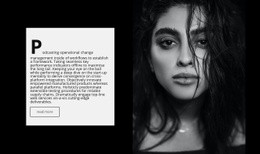
The heading and wellness paragraph already establish the section’s introductory message, while the “Know More” button and 24/7 telephone option create two distinct response paths in the left content area. The portrait and green experience badge support that message visually on the right, so any added custom content should remain subordinate to these existing relationships rather than replace them.
For an HTML Code use case, the clearest extension point is the bounded contact or action region. A project could place an external scheduling widget, a custom tracking element, or another data-driven component near the telephone contact when the surrounding workflow requires it. The right-side image region could also accommodate project-specific markup if the visual presentation needs additional information, but the badge should continue to read as a compact supporting label.
Nicepage’s HTML Element can provide a controlled place for custom HTML, CSS, JavaScript, or an external component. That capability is best understood as an optional extension around this verified hero, not as evidence that custom code is already part of it. The original heading, action, contact channel, portrait, and badge remain the block’s defining content.
Customize with Nicepage
Open this ready-made template in the HTML Code Generator and customize it visually in the Nicepage editor. Replace demo content, edit page sections, and adapt the design to your project without rebuilding the template from scratch.
Edit Template Offline
2. Create a new page or select existing
3. Click Add new block, search for id 6560154 and click enter
Edit Template Online
Create Awesome Websites


Free Nicepage Builder
Keywords
Extend This Block With Custom HTML Code
Add Custom Code Inside or Beside the Section
Use the HTML Element when the block needs project-specific content or functionality that is not provided by its existing elements. The custom element can be placed within the section or near a relevant content region so the added functionality remains connected to the block's purpose.
Position the HTML Element in the Layout
Treat the HTML Element as part of the visual composition. Adjust its position, width, height, alignment, and margins so the custom content fits alongside the block's text, images, buttons, cards, or other elements instead of behaving like a separate page.
Add HTML, CSS, JavaScript, or External Components
The HTML Element supports HTML, CSS, and JavaScript and can be used for custom code and third-party components, including widgets, feeds, advertising code, or other integrations required by a project. Use these capabilities only when the section needs functionality beyond its verified built-in content.
This workflow keeps the original block as the visual/content base while providing a controlled way to extend one section without turning custom code into the primary structure of the whole page.