Valentines day super sale Html Code Example


The Coupon Form Defines a Clear Extension Point
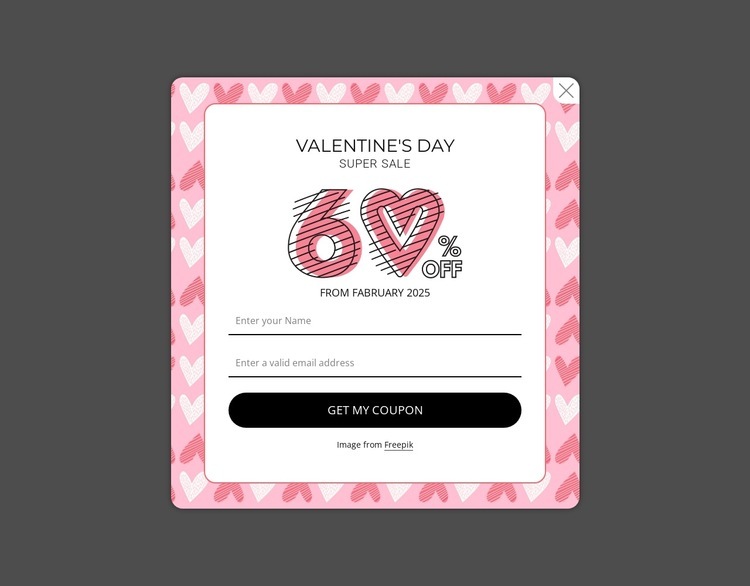
The name field, email field, and “Get my coupon” button create a bounded functional area beneath the seasonal offer. Above them, the “Valentine’s Day” heading, “Super sale” label, promotional graphic, and displayed date explain why the visitor is being asked to provide information. This separation makes the form region a logical place for project-specific extension if the surrounding campaign requires additional processing, an external service, or another data-handling element.
An HTML Code interpretation should begin with these existing regions rather than treating custom functionality as part of the block already. A project could add a custom element near the form when it needs a specialized coupon workflow, validation behavior, or connection to another service, provided the addition does not obscure the compact card. The centered modal and vertical stacking also make placement important: extra content should remain visually subordinate to the primary button and should not compete with the dismiss control. The original section can continue to supply the seasonal message, promotional graphic, two-field input area, and response point while optional code extends the surrounding project logic.
Customize with Nicepage
Open this ready-made template in the HTML Code Generator and customize it visually in the Nicepage editor. Replace demo content, edit page sections, and adapt the design to your project without rebuilding the template from scratch.
Edit Template Offline
2. Create a new page or select existing
3. Click Add new block, search for id 6548018 and click enter
Edit Template Online
Create Awesome Websites


Free Nicepage Builder
Keywords
Extend This Block With Custom HTML Code
Add Custom Code Inside or Beside the Section
Use the HTML Element when the block needs project-specific content or functionality that is not provided by its existing elements. The custom element can be placed within the section or near a relevant content region so the added functionality remains connected to the block's purpose.
Position the HTML Element in the Layout
Treat the HTML Element as part of the visual composition. Adjust its position, width, height, alignment, and margins so the custom content fits alongside the block's text, images, buttons, cards, or other elements instead of behaving like a separate page.
Add HTML, CSS, JavaScript, or External Components
The HTML Element supports HTML, CSS, and JavaScript and can be used for custom code and third-party components, including widgets, feeds, advertising code, or other integrations required by a project. Use these capabilities only when the section needs functionality beyond its verified built-in content.
This workflow keeps the original block as the visual/content base while providing a controlled way to extend one section without turning custom code into the primary structure of the whole page.