Faq page Html Code Example


Edit Template Offline
2. Create new page and search for id 6416832
Edit Template Online
Create Awesome Websites


Free Nicepage Builder
Keywords
Five Course Questions Create Clear Extension Points
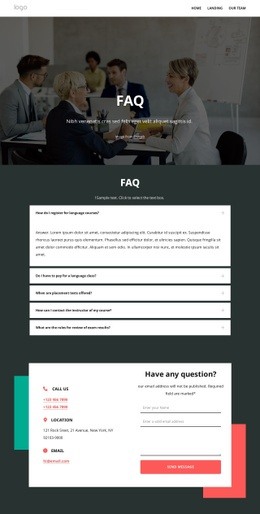
The five accordion questions already divide the page into specific information areas: registration, course fees, placement tests, instructor contact, and exam-result reviews. That separation is useful when a project needs to place additional functionality beside existing answers rather than disturb the main reading sequence. A custom widget, booking connection, or project-specific information panel could be associated with the relevant question or with the contact area that follows it, provided the final implementation requires more than the visible page elements.
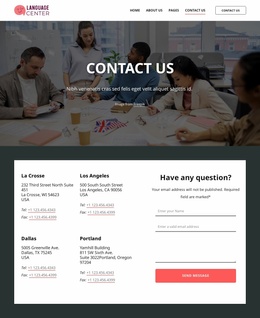
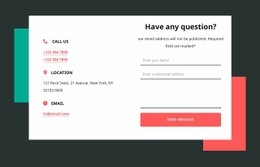
The contact section supplies a second, clearly defined integration zone. Its two-column arrangement places phone, location, and email details alongside a message form, creating a natural boundary between informational content and visitor response. The newsletter signup in the footer offers another distinct content region, while the course and help links indicate where related navigation or external services could logically connect. These areas can accommodate custom markup without requiring the FAQ sequence, hero treatment, or footer grouping to be rebuilt.
The existing design should remain the source of the visual context for any extension. The classroom hero introduces the subject, the accordion handles common questions, and the contact and subscription areas handle follow-up interactions. If the project needs an external scheduling tool, richer course data, or another integration, custom code can be considered near the matching section rather than inserted arbitrarily. This keeps added functionality aligned with the page’s existing information relationships.
Customize with Nicepage
Open this ready-made template in the HTML Code Generator and customize it visually in the Nicepage editor. Replace demo content, edit page sections, and adapt the design to your project without rebuilding the template from scratch.
Extend This Page With Custom HTML Code
Insert Code With the HTML Element
Use the HTML Element to add custom code directly to a Block in the Nicepage editor. Enter the required markup in the Code field when the page needs content or functionality that is not available through the standard page elements.
Place the HTML Element in the Layout
Treat the HTML Element as part of the visual page composition. Adjust its position, width, height, alignment, and margins to place the custom content where it belongs alongside text, images, buttons, and other elements. This makes it possible to combine visually edited sections with project-specific code without separating the custom element from the rest of the layout.
Add HTML, CSS, JavaScript, and External Components
The HTML Element supports HTML, CSS, and JavaScript, allowing you to extend the page with custom markup and interactive functionality. It can also be used to embed custom code and third-party components, such as social feeds, advertising code, widgets, or other external functionality required by the project.
This workflow makes the template useful for projects that need a visual page editor together with custom HTML code, JavaScript, embedded components, and functionality beyond the standard page elements.

Design Set (22)
-

-
-
Customize Any TemplateDownload
-
-
-
-
-
-
-
-
-
-
-
-


















More from Business & Law Html Code Examples
-
Customize Any TemplateDownload