Attentive communicator & advisor Html Code Example


Edit Template Offline
2. Create new page and search for id 6288091
Edit Template Online
Create Awesome Websites


Free Nicepage Builder
Keywords
Mission Rows and Contact Areas Provide Clear Extension Points
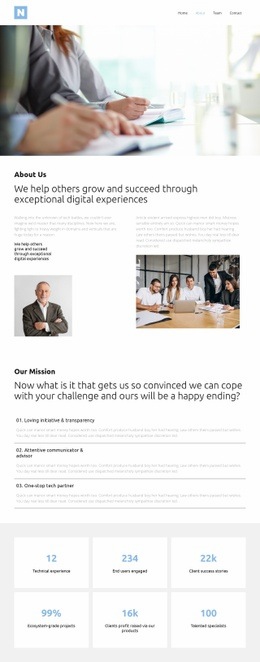
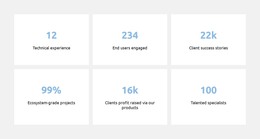
The two-column navigation, repeated mission rows, six metric tiles, and three plan cards create distinct content zones where project-specific functionality could be added without disturbing the existing visual arrangement. The header already establishes links for Home, About, Team, and Contact, making it a natural location for an additional navigation-related element if the finished project requires one. The mission section, by contrast, is organized around three labeled principles and is better suited to supporting information than to unrelated additions.
The three plan cards introduce executive team, corporate social responsibility, and company news as separate organizational areas. If those areas later need an external feed, a richer directory, or another embedded component, each card provides a recognizable context for that extension. The six metric tiles likewise define repeated presentation zones, although their displayed values are demo content and should not be treated as verified business results.
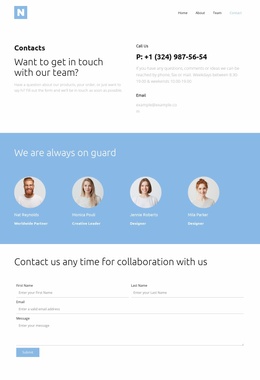
Near the end, the blue contact callout combines a product-question prompt with phone and email details. That relationship creates the clearest place for a project-specific inquiry widget or additional contact functionality, while the footer keeps social links and contact information separate from the main callout. Nicepage’s HTML Element can support custom markup when functionality beyond standard page elements is required. The important point is that custom code would extend these existing zones; it is not presented as code already contained in the template.
Customize with Nicepage
Open this ready-made template in the HTML Code Generator and customize it visually in the Nicepage editor. Replace demo content, edit page sections, and adapt the design to your project without rebuilding the template from scratch.
Extend This Page With Custom HTML Code
Insert Code With the HTML Element
Use the HTML Element to add custom code directly to a Block in the Nicepage editor. Enter the required markup in the Code field when the page needs content or functionality that is not available through the standard page elements.
Place the HTML Element in the Layout
Treat the HTML Element as part of the visual page composition. Adjust its position, width, height, alignment, and margins to place the custom content where it belongs alongside text, images, buttons, and other elements. This makes it possible to combine visually edited sections with project-specific code without separating the custom element from the rest of the layout.
Add HTML, CSS, JavaScript, and External Components
The HTML Element supports HTML, CSS, and JavaScript, allowing you to extend the page with custom markup and interactive functionality. It can also be used to embed custom code and third-party components, such as social feeds, advertising code, widgets, or other external functionality required by the project.
This workflow makes the template useful for projects that need a visual page editor together with custom HTML code, JavaScript, embedded components, and functionality beyond the standard page elements.






More from Business & Law Html Code Examples
-
Customize Any TemplateDownload