Fashion tips Html Code Example


Edit Template Offline
2. Create new page and search for id 26458
Edit Template Online
Create Awesome Websites


Free Nicepage Builder
Keywords
Newsletter and Editorial Sections Leave Room for Page Extensions
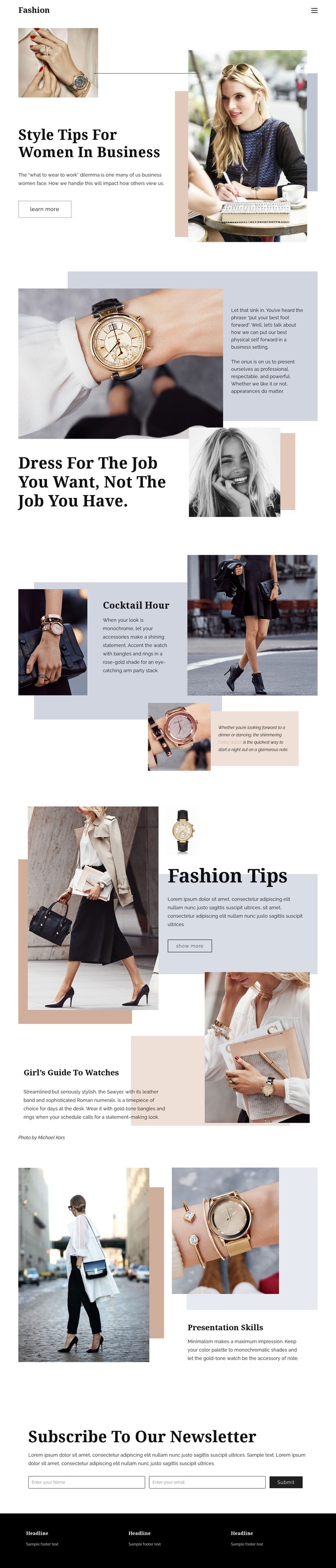
The newsletter form, article-style feature areas, and image-led fashion sections create clear zones for additional project-specific functionality. The opening feature can remain focused on business-style advice, while the watch, cocktail-hour, and presentation sections preserve their roles as editorial content rather than becoming overloaded with controls. This separation is useful when a project needs to add a custom comparison tool, an external subscription service, a product reference, or another component that does not belong in the standard text-and-image arrangement.
The compact form near the bottom already establishes a practical interaction point with name and email fields and a Subscribe control. A custom extension could complement that area with campaign-specific processing or an external service while leaving the surrounding visual hierarchy intact. Likewise, the Learn more and Show more links identify places where additional behavior could be connected if the final project requires it. The three-column footer provides another defined region for related links or supporting information, although its sample text should not be treated as verified business content.
The page’s split sections also make the relationship between custom functionality and presentation easy to evaluate. Added elements should support the editorial flow rather than interrupt the large photographs, restrained typography, or carefully spaced text panels. Nicepage’s HTML Element is a suitable bridge when functionality must sit beside these verified content areas, but the design itself does not claim that custom code is already present.
Customize with Nicepage
Open this ready-made template in the HTML Code Generator and customize it visually in the Nicepage editor. Replace demo content, edit page sections, and adapt the design to your project without rebuilding the template from scratch.
Extend This Page With Custom HTML Code
Insert Code With the HTML Element
Use the HTML Element to add custom code directly to a Block in the Nicepage editor. Enter the required markup in the Code field when the page needs content or functionality that is not available through the standard page elements.
Place the HTML Element in the Layout
Treat the HTML Element as part of the visual page composition. Adjust its position, width, height, alignment, and margins to place the custom content where it belongs alongside text, images, buttons, and other elements. This makes it possible to combine visually edited sections with project-specific code without separating the custom element from the rest of the layout.
Add HTML, CSS, JavaScript, and External Components
The HTML Element supports HTML, CSS, and JavaScript, allowing you to extend the page with custom markup and interactive functionality. It can also be used to embed custom code and third-party components, such as social feeds, advertising code, widgets, or other external functionality required by the project.
This workflow makes the template useful for projects that need a visual page editor together with custom HTML code, JavaScript, embedded components, and functionality beyond the standard page elements.

More from Business & Law Html Code Examples
-
Customize Any TemplateDownload