How to create a house Html Code Example


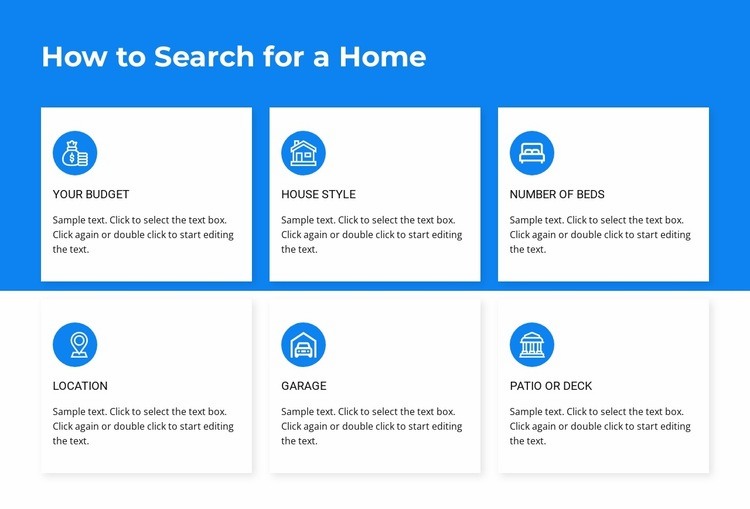
Six Criterion Cards Create Clear Extension Regions
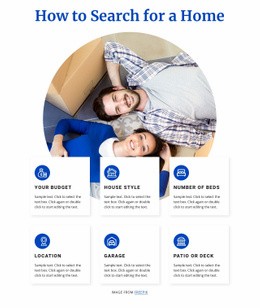
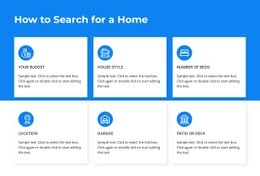
The six card regions already separate the home-search criteria into understandable content areas. Your Budget, House Style, Number of Beds, Location, Garage, and Patio or Deck each have their own title, circular icon, and descriptive paragraph, while the heading “How to Search for a Home” establishes the shared subject above the grid. This gives a project-specific extension a clear place to relate to an existing criterion without replacing the section’s basic structure.
For example, a custom element could be considered near a relevant card if the surrounding project later needs an external data display, a specialized comparison area, or another function connected to home-search preferences. The three-column, two-row arrangement helps preserve the distinction between that addition and the other criteria. Any extension should respect the white card boundaries, the bright blue section background, and the concise text pattern so the new content does not appear to be an unrelated seventh feature.
The block itself remains a static explanatory section. Custom HTML, CSS, or JavaScript would therefore represent an optional project decision around the verified cards, not an existing interaction within them. The main value of this HTML Code context is the separation of six practical content regions that can be extended selectively while the heading and repeated card logic continue to communicate the original home-search message.
Customize with Nicepage
Open this ready-made template in the HTML Code Generator and customize it visually in the Nicepage editor. Replace demo content, edit page sections, and adapt the design to your project without rebuilding the template from scratch.
Edit Template Offline
2. Create a new page or select existing
3. Click Add new block, search for id 2059352 and click enter
Edit Template Online
Create Awesome Websites


Free Nicepage Builder
Keywords
Extend This Page With Custom HTML Code
Insert Code With the HTML Element
Use the HTML Element to add custom code directly to a Block in the Nicepage editor. Enter the required markup in the Code field when the page needs content or functionality that is not available through the standard page elements.
Place the HTML Element in the Layout
Treat the HTML Element as part of the visual page composition. Adjust its position, width, height, alignment, and margins to place the custom content where it belongs alongside text, images, buttons, and other elements. This makes it possible to combine visually edited sections with project-specific code without separating the custom element from the rest of the layout.
Add HTML, CSS, JavaScript, and External Components
The HTML Element supports HTML, CSS, and JavaScript, allowing you to extend the page with custom markup and interactive functionality. It can also be used to embed custom code and third-party components, such as social feeds, advertising code, widgets, or other external functionality required by the project.
This workflow makes the template useful for projects that need a visual page editor together with custom HTML code, JavaScript, embedded components, and functionality beyond the standard page elements.

Design Set (11)












More from Real Estate Blocks
-

-

-
-
-
-
-
-
-
-
-
Customize Any TemplateDownload
-
-
-
-
-
-
-
-
-
-














More from Grid Repeater Blocks
-

-
-
-
-
-
-
-
-
-
-
Customize Any TemplateDownload
-
-
-
-
-
-
-
-
-
-