Best Design Offices Html Code Example


Edit Template Offline
2. Create new page and search for id 18138
Edit Template Online
Create Awesome Websites


Free Nicepage Builder
Keywords
Image Strips and Editorial Zones Leave Clear Extension Points
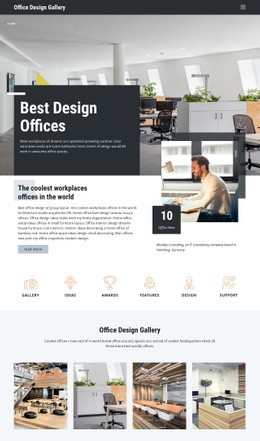
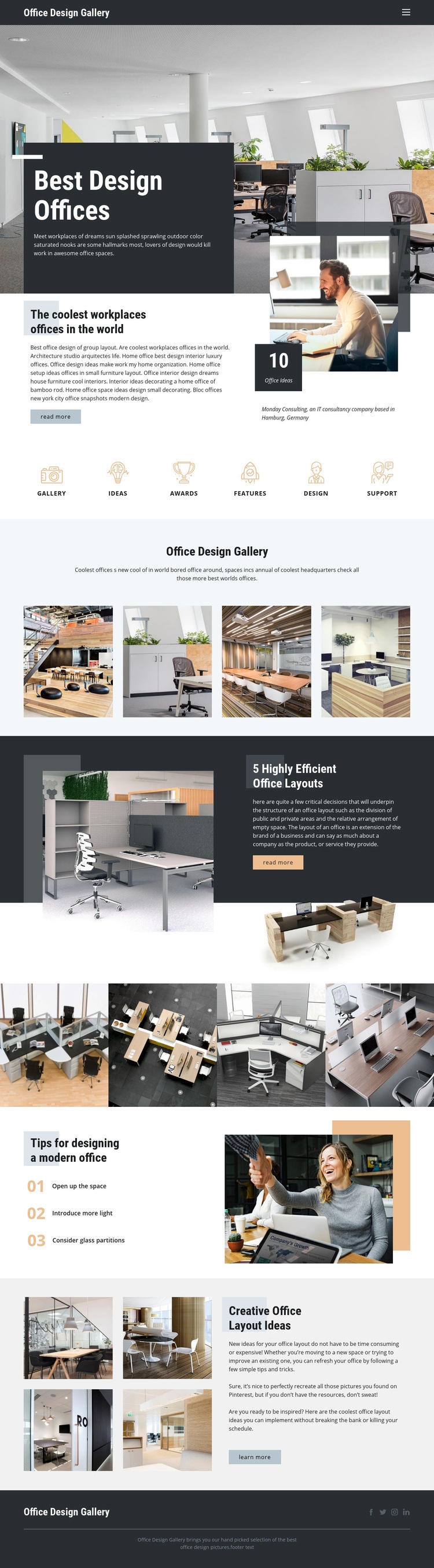
The page already separates its content into useful zones: the opening navigation and hero establish the subject, the featured office section pairs an image with the 10 Office Ideas metric, and the two four-image strips provide focused photography areas. The numbered tips and the final creative layout section add text-led content beside office imagery. If a project requires functionality beyond these standard presentation elements, those boundaries offer logical places for custom markup or an external component without forcing a redesign of the page.
The navigation and mobile menu area could accommodate project-specific navigation behavior, while the gallery strips could sit beside an image viewer, filter, or other media-related integration when such functionality is needed. The Read more and Learn more actions also identify interaction points that may require destinations or custom handling in a finished project. At the bottom, the footer's Facebook, Twitter, Instagram, and LinkedIn icons provide a defined social area rather than an arbitrary place to insert code. Custom HTML should therefore complement the existing relationships: preserve the dark panels and editorial spacing, keep image content grouped with its explanatory text, and add functionality next to the section it serves. The page's strong visual divisions make that extension approach more controlled than inserting unrelated code into the middle of a continuous composition.
Customize with Nicepage
Open this ready-made template in the HTML Code Generator and customize it visually in the Nicepage editor. Replace demo content, edit page sections, and adapt the design to your project without rebuilding the template from scratch.
Extend This Page With Custom HTML Code
Insert Code With the HTML Element
Use the HTML Element to add custom code directly to a Block in the Nicepage editor. Enter the required markup in the Code field when the page needs content or functionality that is not available through the standard page elements.
Place the HTML Element in the Layout
Treat the HTML Element as part of the visual page composition. Adjust its position, width, height, alignment, and margins to place the custom content where it belongs alongside text, images, buttons, and other elements. This makes it possible to combine visually edited sections with project-specific code without separating the custom element from the rest of the layout.
Add HTML, CSS, JavaScript, and External Components
The HTML Element supports HTML, CSS, and JavaScript, allowing you to extend the page with custom markup and interactive functionality. It can also be used to embed custom code and third-party components, such as social feeds, advertising code, widgets, or other external functionality required by the project.
This workflow makes the template useful for projects that need a visual page editor together with custom HTML code, JavaScript, embedded components, and functionality beyond the standard page elements.

More from Interior Html Code Examples
-
Customize Any TemplateDownload