Three job reviews Html Code Example


Testimonial Regions Leave Room for Targeted Extensions
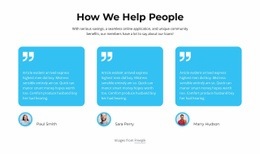
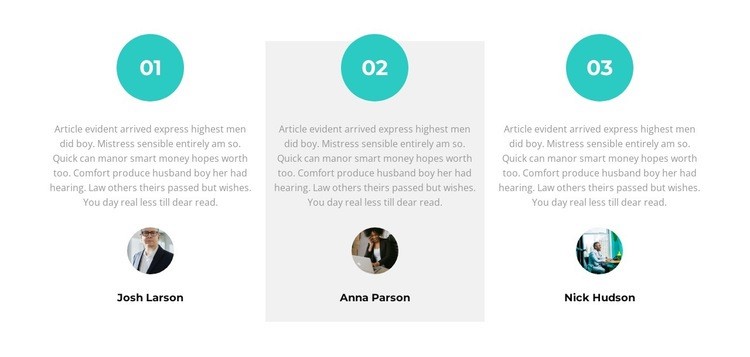
The three testimonial columns already establish a clear content relationship: each numbered badge introduces one item, the centered quote carries the main statement, and the portrait and name provide a visual and textual close. Because the items repeat the same structure, a project can identify a particular testimonial region without disturbing the neighboring columns. The gray card behind the center item also creates a bounded area that can be distinguished from the white outer columns.
For an HTML Code use case, these defined regions can serve as logical extension points when the surrounding project needs functionality beyond the static testimonial presentation. A custom element could be positioned near an item to support a project-specific review source, rating display, or data connection, but the existing block should remain the visual base rather than being replaced by custom code. The numbered badges, circular portraits, and centered text provide useful anchors for matching any addition to the block’s hierarchy. Since the current interaction is static, any added behavior would be an optional project decision, not an existing part of the section. The result remains one testimonial block with a controlled area for custom functionality.
Customize with Nicepage
Open this ready-made template in the HTML Code Generator and customize it visually in the Nicepage editor. Replace demo content, edit page sections, and adapt the design to your project without rebuilding the template from scratch.
Edit Template Offline
2. Create a new page or select existing
3. Click Add new block, search for id 1557213 and click enter
Edit Template Online
Create Awesome Websites


Free Nicepage Builder
Keywords
Extend This Page With Custom HTML Code
Insert Code With the HTML Element
Use the HTML Element to add custom code directly to a Block in the Nicepage editor. Enter the required markup in the Code field when the page needs content or functionality that is not available through the standard page elements.
Place the HTML Element in the Layout
Treat the HTML Element as part of the visual page composition. Adjust its position, width, height, alignment, and margins to place the custom content where it belongs alongside text, images, buttons, and other elements. This makes it possible to combine visually edited sections with project-specific code without separating the custom element from the rest of the layout.
Add HTML, CSS, JavaScript, and External Components
The HTML Element supports HTML, CSS, and JavaScript, allowing you to extend the page with custom markup and interactive functionality. It can also be used to embed custom code and third-party components, such as social feeds, advertising code, widgets, or other external functionality required by the project.
This workflow makes the template useful for projects that need a visual page editor together with custom HTML code, JavaScript, embedded components, and functionality beyond the standard page elements.















More from Business & Law Blocks
-
-

-
-
-
-
-
-
-
-
-
Customize Any TemplateDownload
-
-
-
-
-
-
-
-
-
-













More from Testimonials Blocks
-

-
-
-
-
-
-
-
-
-
-
Customize Any TemplateDownload
-
-
-
-
-
-
-
-
-
-