Gallery with modern details Html Code Example


Six Image Regions Leave Clear Space for Extensions
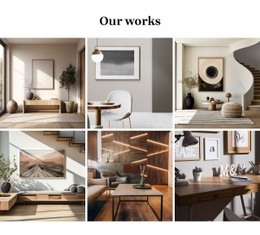
The gallery already establishes six bounded image regions in a three-column, two-row grid, with each photograph contributing visual information about interior furnishings and decor. The lightbox behavior gives the image collection a viewing path, while hover overlays create a separate interaction layer before an image is opened. Beneath these regions, the centered outlined View More button forms a distinct action area rather than blending into the gallery cells.
That separation creates logical places for optional custom functionality if a project later needs more than the existing presentation. A project-specific component could work near the View More action, extend the image data around the gallery, or connect an external destination without replacing the established six-image arrangement. Custom code should complement the lightbox and hover relationships instead of treating the section as an empty container. The narrow white gutters and light background also help preserve visual boundaries when an added element needs to sit beside or below the image grid. In this context, HTML Code concerns controlled extension around real gallery regions: the section remains a furnishing gallery, while additional behavior can be introduced where its content structure already provides a clear connection point.
Customize with Nicepage
Open this ready-made template in the HTML Code Generator and customize it visually in the Nicepage editor. Replace demo content, edit page sections, and adapt the design to your project without rebuilding the template from scratch.
Edit Template Offline
2. Create a new page or select existing
3. Click Add new block, search for id 105481 and click enter
Edit Template Online
Create Awesome Websites


Free Nicepage Builder
Keywords
Extend This Page With Custom HTML Code
Insert Code With the HTML Element
Use the HTML Element to add custom code directly to a Block in the Nicepage editor. Enter the required markup in the Code field when the page needs content or functionality that is not available through the standard page elements.
Place the HTML Element in the Layout
Treat the HTML Element as part of the visual page composition. Adjust its position, width, height, alignment, and margins to place the custom content where it belongs alongside text, images, buttons, and other elements. This makes it possible to combine visually edited sections with project-specific code without separating the custom element from the rest of the layout.
Add HTML, CSS, JavaScript, and External Components
The HTML Element supports HTML, CSS, and JavaScript, allowing you to extend the page with custom markup and interactive functionality. It can also be used to embed custom code and third-party components, such as social feeds, advertising code, widgets, or other external functionality required by the project.
This workflow makes the template useful for projects that need a visual page editor together with custom HTML code, JavaScript, embedded components, and functionality beyond the standard page elements.





More from Interior Blocks
-
-

-
-
-
-
-
-
-
-
-
Customize Any TemplateDownload
-
-
-
-
-
-
-
-
-
-











More from Gallery Blocks
-

-
-
-
-
-
-
-
-
-
-
Customize Any TemplateDownload
-
-
-
-
-
-
-
-
-
-