Sport horseback riding HTML5 Template


One Heading, One Text Group, and Two Image Regions
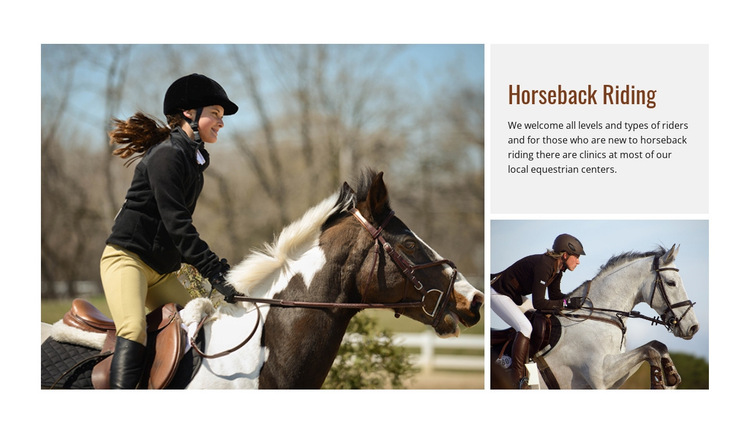
The block’s internal organization begins with a visual region: one large horseback riding photograph occupying the left side. A second region sits on the right, where the light-gray text panel contains the “Horseback Riding” heading and the supporting paragraph. Beneath that panel, the smaller horseback riding photograph forms a third region. This ordering makes the written introduction a distinct group rather than a caption layered over either image.
That hierarchy gives the section a straightforward HTML5-oriented reading order. The heading identifies the subject, the paragraph adds context about welcoming riders at different levels and providing clinics for beginners, and the two photographs supply separate visual evidence of the activity. The images are not interchangeable decorations: the large left crop carries primary visual weight, while the smaller right image supports the text column and completes its vertical rhythm.
Nicepage’s Layers panel can help inspect the Containers, Elements, and nested relationships within a block of this kind. The useful focus is the organization inside this section: the primary image region, the text group, and the supporting image. Page-wide navigation or other surrounding structures are outside this internal hierarchy.
Customize with Nicepage
Open this ready-made template in the HTML5 Template Builder and customize it visually in the Nicepage editor. Replace demo content, edit page sections, and adapt the design to your project without rebuilding the template from scratch.
Edit Template Offline
2. Create a new page or select existing
3. Click Add new block, search for id 54945 and click enter
Edit Template Online
Create Awesome Websites


Free Nicepage Builder
Keywords
Explore This HTML5 Template Structure
Navigate the Page Structure
Customize this ready-made HTML5 template visually in the Nicepage editor while keeping its page organization easy to understand. Use the Layers panel to view the hierarchy of the Header, Blocks, Containers, Elements, and Footer, navigate between different parts of the page, and quickly select items within the layout.
The Layers panel also provides practical controls for working with more complex pages. Blocks, Containers, and Elements can be renamed for easier identification, temporarily hidden while editing, or locked to prevent accidental changes. The outline can also expose the internal structure of elements such as Menus and Contact Forms.
Work With Organized Page Sections
Blocks divide the page into major content sections, while Containers and Elements organize the content inside them. Keeping this hierarchy visible makes it easier to understand how individual parts of the page relate to one another, especially when a layout contains many nested elements.
You can use the Layers panel to move through this structure instead of selecting everything directly on the canvas, making complex layouts easier to inspect and manage as an organized page hierarchy.
Review and Extend the HTML
After customizing the page visually, the resulting HTML can be reviewed and adapted when code-level changes are required. If a project needs additional markup or functionality beyond the standard page elements, use the HTML Element to add targeted custom HTML where necessary.
This workflow combines visual editing with a clear view of the page hierarchy, making the template useful both as a ready-made design and as an HTML5 project whose structure can be inspected, managed, adapted, and extended.








More from Sports Blocks
-
-

-
-
-
-
-
-
-
-
-
Free Website Builder SoftwareDownload
-
-
-
-
-
-
-
-
-
-








More from Grid Blocks
-

-
-
-
-
-
-
-
-
-
-
Free Website Builder SoftwareDownload
-
-
-
-
-
-
-
-
-
-