Mockup architecture Template


An Equal Image Split With One Focused Text Layer
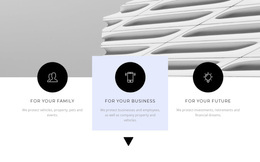
The block stands out through the way it gives two equal visual areas different jobs. On the left, a darkened architectural photograph becomes the background for the centered “mockup” heading and supporting paragraph. On the right, another monochrome architectural image remains free of visible text. This avoids the crowded feel of placing copy over both images and creates a deliberate contrast between explanation and atmosphere.
That combination makes the section a useful choice when a page needs an introduction with more visual weight than a standard single-column text area. The equal widths keep the composition balanced, while the left overlay establishes a clear reading point and the right image extends the subject across the full height of its half. The monochrome treatment also links the two areas, so the visual difference comes from content role rather than unrelated styling.
The static arrangement is especially appropriate for editorial, architecture, or built-environment topics where imagery carries much of the first impression. The visible heading is brief, and the paragraph supplies supporting context without turning the section into a dense information panel. In a broader page, this design can introduce a theme before other sections develop it through projects, descriptions, or contact information. Its main selection advantage is the combination of equal balance, paired photography, and one concentrated text overlay.
Customize with Nicepage
Open this ready-made template in the Template Builder and customize it visually in the Nicepage editor. Replace demo content, edit page sections, and adapt the design to your project without rebuilding the template from scratch.
Edit Template Offline
2. Create a new page or select existing
3. Click Add new block, search for id 921013 and click enter
Edit Template Online
Create Awesome Websites


Free Nicepage Builder
Keywords
Start With a Ready-Made Template
Choose a Design for a New Page
Use a ready-made template as a starting point instead of creating every page from a blank canvas. When adding a new page in Nicepage, browse available designs, compare different layouts, and choose an option that already fits the general purpose and visual direction of your project.
Browse Different Page Designs
Explore Page Designs using search, thematic categories, Design Sets, and full-page previews. The collection includes layouts for different subjects and page purposes, making it easier to compare alternatives before selecting a design to customize.
Customize the Selected Template
After choosing a design, create the page and continue editing it visually in Nicepage. Replace the demo content, adjust images, typography, colors, sections, and other elements, and adapt the ready-made layout to your own content instead of rebuilding the design from the beginning.
Explore More Design Directions
If the first option does not match your project closely enough, return to the design collection and compare other templates before committing to a layout. This makes the template library useful not only for faster page creation, but also for exploring different visual approaches and finding a suitable starting point for a new project.
This workflow gives you access to a broad collection of ready-made designs that can be selected, compared, and customized according to the needs of each new page or project.