Creative strategy in business Template


Edit Template Offline
2. Create new page and search for id 87105
Edit Template Online
Create Awesome Websites


Free Nicepage Builder
Keywords
Portrait-led storytelling connects strategy with people and partners
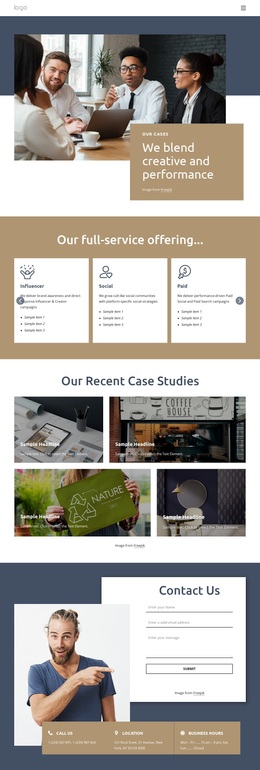
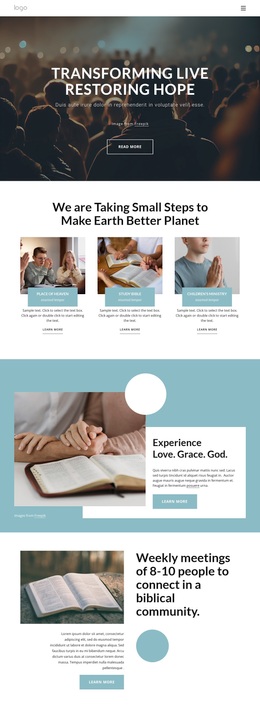
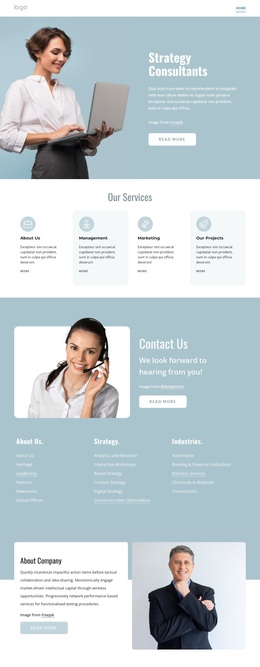
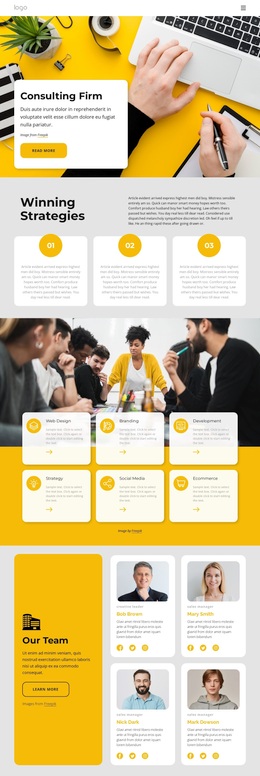
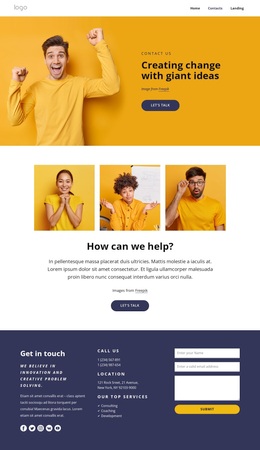
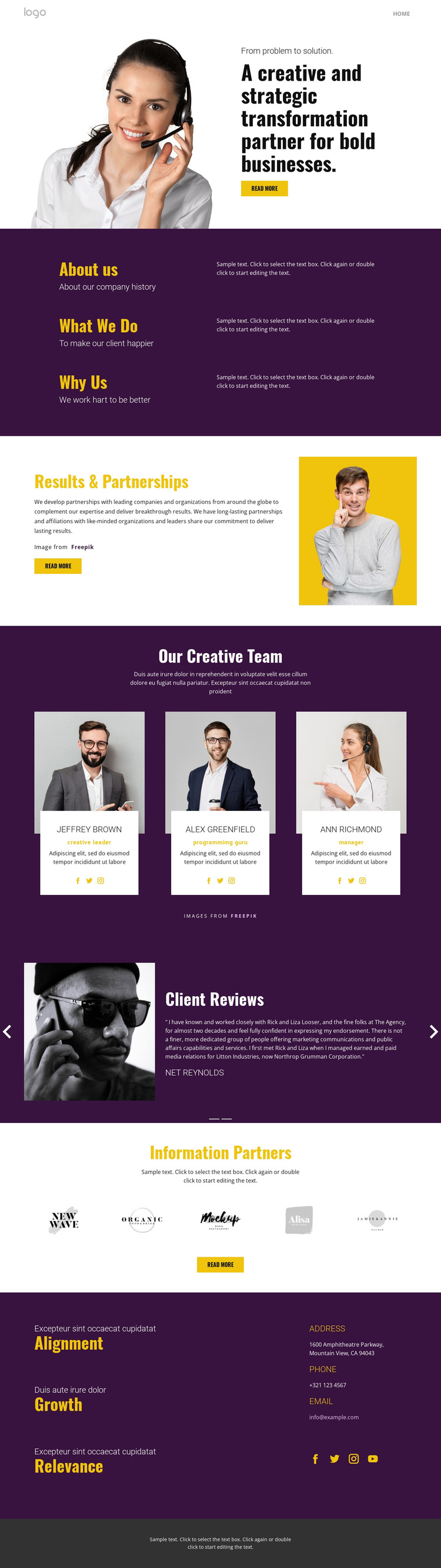
Portrait photography appears in the introduction, partnership section, team area, and testimonial presentation, making people and relationships central to this design choice. The opening image sits beside the statement about being a creative and strategic transformation partner, so the page establishes its point of view before presenting supporting information. This gives the template a clear identity for projects that need agency expertise to feel connected to real people rather than presented as a list of services.
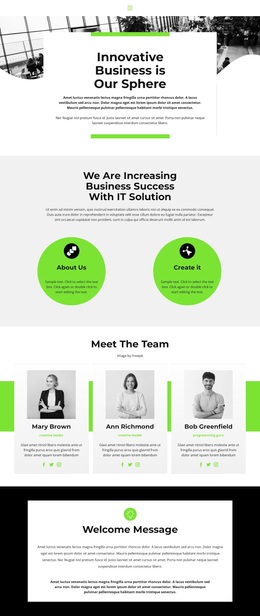
The three equal panels provide compact coverage of About Us, What We Do, and Why Us. Their repeated format makes the information easy to compare while keeping the page from becoming a long block of corporate text. Results & Partnerships then shifts the emphasis toward collaboration, using another portrait-led split section and a Read More action. The sequence creates a useful balance between explanation, differentiation, and an invitation to continue exploring.
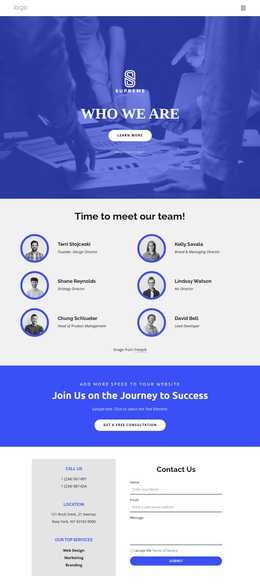
The choice is reinforced by concrete proof-oriented areas: three creative team profiles, a two-item client review carousel, and five information-partner logos. These components give the page several ways to communicate capability, experience, and connections without relying on one section alone. A closing contact area with Alignment, Growth, and Relevance statements, contact channels, and social links makes the design suitable for agency profiles that need both a distinctive visual direction and broad content coverage.
Customize with Nicepage
Open this ready-made template in the Template Builder and customize it visually in the Nicepage editor. Replace demo content, edit page sections, and adapt the design to your project without rebuilding the template from scratch.
Start With a Ready-Made Template
Choose a Design for a New Page
Use a ready-made template as a starting point instead of creating every page from a blank canvas. When adding a new page in Nicepage, browse available designs, compare different layouts, and choose an option that already fits the general purpose and visual direction of your project.
Browse Different Page Designs
Explore Page Designs using search, thematic categories, Design Sets, and full-page previews. The collection includes layouts for different subjects and page purposes, making it easier to compare alternatives before selecting a design to customize.
Customize the Selected Template
After choosing a design, create the page and continue editing it visually in Nicepage. Replace the demo content, adjust images, typography, colors, sections, and other elements, and adapt the ready-made layout to your own content instead of rebuilding the design from the beginning.
Explore More Design Directions
If the first option does not match your project closely enough, return to the design collection and compare other templates before committing to a layout. This makes the template library useful not only for faster page creation, but also for exploring different visual approaches and finding a suitable starting point for a new project.
This workflow gives you access to a broad collection of ready-made designs that can be selected, compared, and customized according to the needs of each new page or project.