
Business Offline Page Template


Edit Template Offline
2. Create new page and search for id 6658593
Edit Template Online
Create Awesome Websites


Free Nicepage Builder
Keywords
Three Saved-Content Categories Give This Status Page a Useful Direction
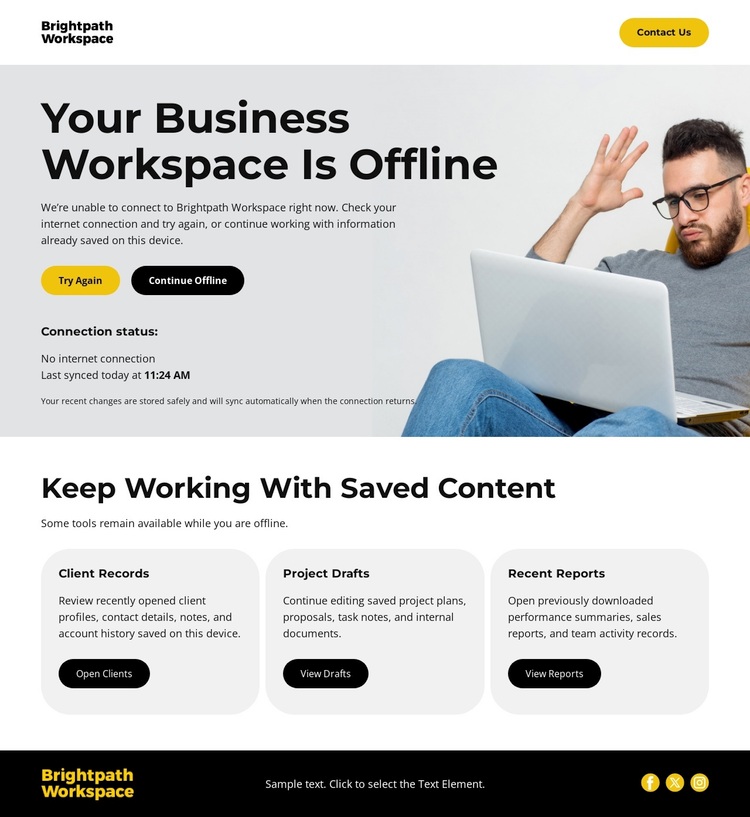
The design is worth considering because it treats an offline state as a workspace moment rather than as an isolated warning. The central message is specific, and the two actions provide different responses: Try Again addresses reconnection, while Continue Offline acknowledges that saved work may still matter immediately. The last-synced reference adds a practical point of context without turning the page into a dense dashboard.
Its strongest distinguishing feature is the lower saved-content area. Recent Records, Project Drafts, and Recent Reports are grouped as three adjacent cards, so the page explains what users can still reach after the connection interruption. Each category has its own action, giving the compact layout more depth than a single retry button. The header’s Contact Us route adds a human-support option, while the dark footer and yellow accents maintain a clear productivity-interface character.
This combination suits projects that need to communicate service availability, preserve access to previously saved work, and keep recovery choices visible. The design does not depend on a broad industry claim; its value comes from the relationship between status, decision, and content access. It is a focused option for an offline workspace, maintenance, reconnect, or recovery experience where clarity is more important than a large collection of decorative sections.
Customize with Nicepage
Open this ready-made template in the Template Builder and customize it visually in the Nicepage editor. Replace demo content, edit page sections, and adapt the design to your project without rebuilding the template from scratch.
Start With a Ready-Made Template
Choose a Design for a New Page
Use a ready-made template as a starting point instead of creating every page from a blank canvas. When adding a new page in Nicepage, browse available designs, compare different layouts, and choose an option that already fits the general purpose and visual direction of your project.
Browse Different Page Designs
Explore Page Designs using search, thematic categories, Design Sets, and full-page previews. The collection includes layouts for different subjects and page purposes, making it easier to compare alternatives before selecting a design to customize.
Customize the Selected Template
After choosing a design, create the page and continue editing it visually in Nicepage. Replace the demo content, adjust images, typography, colors, sections, and other elements, and adapt the ready-made layout to your own content instead of rebuilding the design from the beginning.
Explore More Design Directions
If the first option does not match your project closely enough, return to the design collection and compare other templates before committing to a layout. This makes the template library useful not only for faster page creation, but also for exploring different visual approaches and finding a suitable starting point for a new project.
This workflow gives you access to a broad collection of ready-made designs that can be selected, compared, and customized according to the needs of each new page or project.
