
No Connection Page Template


Edit Template Offline
2. Create new page and search for id 6658547
Edit Template Online
Create Awesome Websites


Free Nicepage Builder
Keywords
A rental outage design built around visible recovery and reassurance
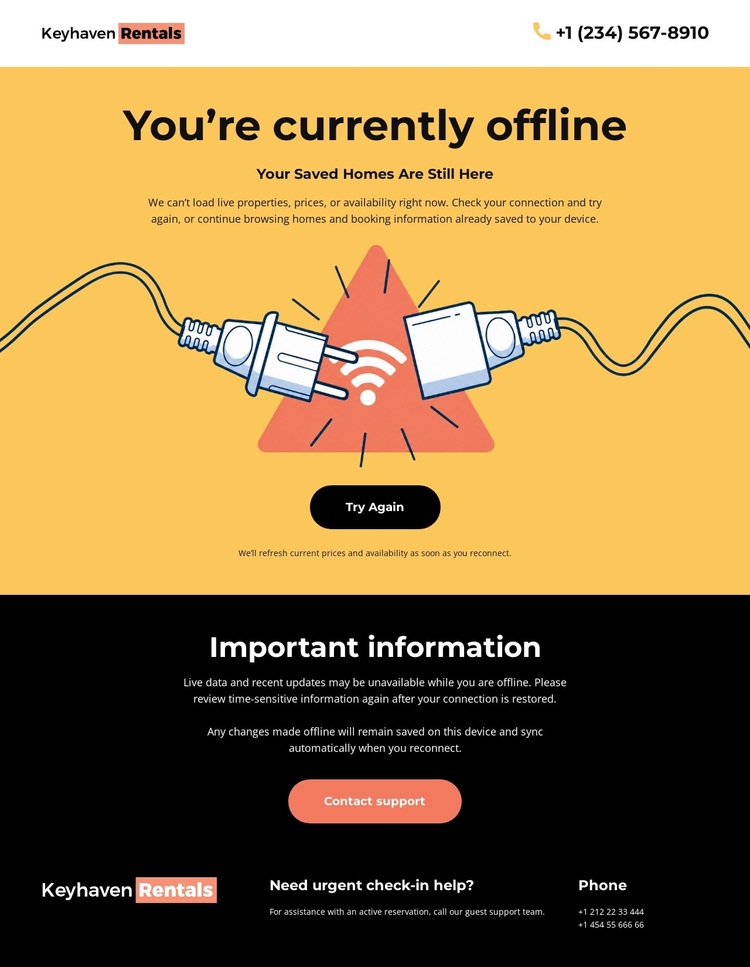
The strongest reason to choose this design is its specific handling of an unavailable rental service. Instead of relying on a generic error notice, the page identifies Keyhaven Rentals at the top, states the offline condition directly, and pairs the message with a simple illustration. The saved-homes message adds a useful continuity cue for returning visitors, suggesting that the interruption affects access rather than erasing the visitor’s rental context.
The two actions give the layout a practical distinction. “Try Again” supports visitors who expect the service to return, while “Contact support” provides an alternative when the problem needs human attention. Below that decision point, the black “Important information” panel offers room for offline-use guidance, and the footer shifts the emphasis to urgent check-in help. Phone contact appears in the header and footer, reinforcing that support is part of the page’s purpose rather than an afterthought.
This makes the template a useful choice for projects that need a calm, direct interruption page for rentals, access, maintenance, or another service with time-sensitive support needs. Its value is not a broad collection of website sections; it is the focused relationship between status, recovery, saved information, and contact assistance.
Customize with Nicepage
Open this ready-made template in the Template Builder and customize it visually in the Nicepage editor. Replace demo content, edit page sections, and adapt the design to your project without rebuilding the template from scratch.
Start With a Ready-Made Template
Choose a Design for a New Page
Use a ready-made template as a starting point instead of creating every page from a blank canvas. When adding a new page in Nicepage, browse available designs, compare different layouts, and choose an option that already fits the general purpose and visual direction of your project.
Browse Different Page Designs
Explore Page Designs using search, thematic categories, Design Sets, and full-page previews. The collection includes layouts for different subjects and page purposes, making it easier to compare alternatives before selecting a design to customize.
Customize the Selected Template
After choosing a design, create the page and continue editing it visually in Nicepage. Replace the demo content, adjust images, typography, colors, sections, and other elements, and adapt the ready-made layout to your own content instead of rebuilding the design from the beginning.
Explore More Design Directions
If the first option does not match your project closely enough, return to the design collection and compare other templates before committing to a layout. This makes the template library useful not only for faster page creation, but also for exploring different visual approaches and finding a suitable starting point for a new project.
This workflow gives you access to a broad collection of ready-made designs that can be selected, compared, and customized according to the needs of each new page or project.
