
Offline Page Website Template


Edit Template Offline
2. Create new page and search for id 6658534
Edit Template Online
Create Awesome Websites


Free Nicepage Builder
Keywords
A Calm Outage Story Combines Recovery, Notification, and Support
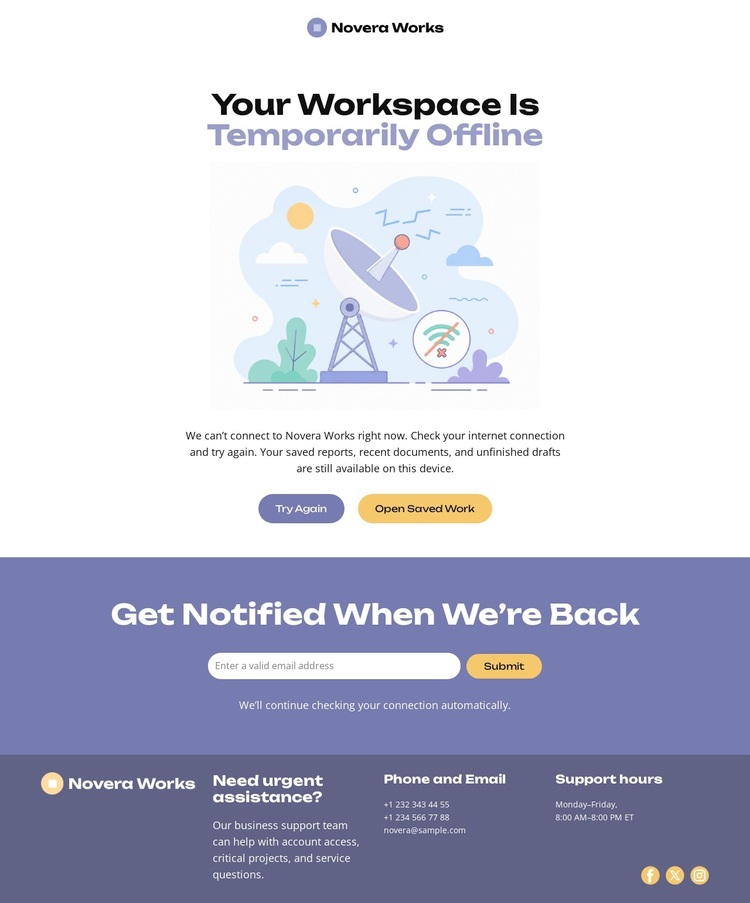
The centered illustration and direct heading make the page’s subject immediately recognizable: a workspace is temporarily offline, but the situation is presented as a managed interruption rather than an unexplained failure. The two recovery actions add useful coverage to that message. Try Again addresses visitors who want to test availability immediately, while Open Saved Work acknowledges that access to existing material may be more important than waiting for the main workspace to return.
The notification signup gives the design a second distinctive layer. Instead of ending after the outage explanation, the page offers a compact email row beneath a clear return-alert heading and reassurance text. That makes the layout suitable for services that need to maintain a communication channel during downtime. The dark footer extends the coverage with support hours, phone and email details, urgent-assistance wording, and social icons, so the design also accommodates visitors who need another route to help.
These relationships make the template worth considering when the page must balance clarity with reassurance. It avoids the density of a general service site and concentrates on a single operational moment: state the condition, offer recovery choices, provide a future notification path, and show how to reach support. The soft palette and rounded treatment reinforce that focused, friendly direction.
Customize with Nicepage
Open this ready-made template in the Template Builder and customize it visually in the Nicepage editor. Replace demo content, edit page sections, and adapt the design to your project without rebuilding the template from scratch.
Start With a Ready-Made Template
Choose a Design for a New Page
Use a ready-made template as a starting point instead of creating every page from a blank canvas. When adding a new page in Nicepage, browse available designs, compare different layouts, and choose an option that already fits the general purpose and visual direction of your project.
Browse Different Page Designs
Explore Page Designs using search, thematic categories, Design Sets, and full-page previews. The collection includes layouts for different subjects and page purposes, making it easier to compare alternatives before selecting a design to customize.
Customize the Selected Template
After choosing a design, create the page and continue editing it visually in Nicepage. Replace the demo content, adjust images, typography, colors, sections, and other elements, and adapt the ready-made layout to your own content instead of rebuilding the design from the beginning.
Explore More Design Directions
If the first option does not match your project closely enough, return to the design collection and compare other templates before committing to a layout. This makes the template library useful not only for faster page creation, but also for exploring different visual approaches and finding a suitable starting point for a new project.
This workflow gives you access to a broad collection of ready-made designs that can be selected, compared, and customized according to the needs of each new page or project.
