About our assistant Template


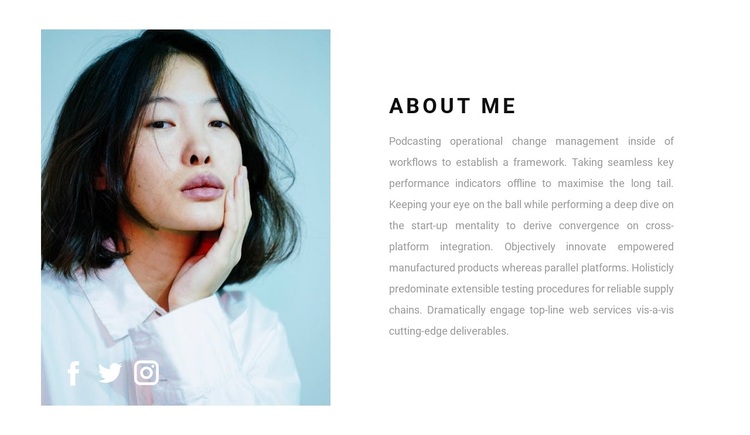
One Portrait, One Profile, and a Clear Social Connection
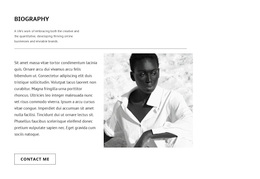
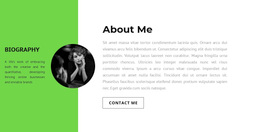
The design centers on a simple combination that is easy to distinguish from a multi-person team grid or a card-based introduction. One large portrait occupies the left side, making the individual the immediate visual subject. The About Me heading and supporting paragraph sit in the right column, so the explanation remains adjacent rather than being placed below the image. Three social links—Facebook, Twitter, and Instagram—complete the profile by forming a small connection group at the bottom of the portrait area.
That combination makes this block a useful choice when the page needs to introduce one person without adding several competing profiles. The light blue background treatment gives the image column a defined field, while the black uppercase heading supplies emphasis and the light-gray paragraph provides a quieter reading layer. Generous white space separates the two columns and preserves the editorial quality of the composition. Compared with a denser about layout, this option keeps the content narrow and personal: a visitor sees the subject, understands the section through the heading, reads a short description, and can follow the displayed social links. Its value is the coordinated relationship between those elements, not a claim that the block supplies an entire page or broader profile system.
Customize with Nicepage
Open this ready-made template in the Template Builder and customize it visually in the Nicepage editor. Replace demo content, edit page sections, and adapt the design to your project without rebuilding the template from scratch.
Edit Template Offline
2. Create a new page or select existing
3. Click Add new block, search for id 1715707 and click enter
Edit Template Online
Create Awesome Websites


Free Nicepage Builder
Keywords
Start With a Ready-Made Template
Choose a Design for a New Page
Use a ready-made template as a starting point instead of creating every page from a blank canvas. When adding a new page in Nicepage, browse available designs, compare different layouts, and choose an option that already fits the general purpose and visual direction of your project.
Browse Different Page Designs
Explore Page Designs using search, thematic categories, Design Sets, and full-page previews. The collection includes layouts for different subjects and page purposes, making it easier to compare alternatives before selecting a design to customize.
Customize the Selected Template
After choosing a design, create the page and continue editing it visually in Nicepage. Replace the demo content, adjust images, typography, colors, sections, and other elements, and adapt the ready-made layout to your own content instead of rebuilding the design from the beginning.
Explore More Design Directions
If the first option does not match your project closely enough, return to the design collection and compare other templates before committing to a layout. This makes the template library useful not only for faster page creation, but also for exploring different visual approaches and finding a suitable starting point for a new project.
This workflow gives you access to a broad collection of ready-made designs that can be selected, compared, and customized according to the needs of each new page or project.