Development plan Web Page Design


The left image panel anchors a balanced four-step page composition
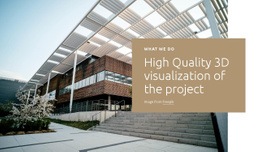
The block’s page composition depends on a deliberate contrast between a visually dominant left region and a denser right region. The architectural facade image gives the left panel a strong surface, while the white “What Does We Do?” heading and paragraph establish the first reading point. Across from it, the four numbered items create a narrow vertical information path, with Call Service, Your Strategy, Team Building, and Premium plan arranged from 01 to 04.
This relationship gives the section a clear internal rhythm: visitors meet the subject in the image-backed panel, then move through the ordered service details on the right. The circular markers act as alignment cues between the two halves, and the dark headings maintain hierarchy against the light gray surrounding field. Because each item includes supporting copy, the right side carries useful detail without requiring a separate visual panel for every step.
As a web page design component, the block can function as a strong mid-page transition between broader content areas. Its asymmetry prevents the process explanation from reading like a flat list, while the static layout keeps the full message visible. Neighboring sections can provide the page’s opening, proof, portfolio, or response content; this block contributes one composed unit with a clear entry point, progression, and visual endpoint.
Customize with Nicepage
Open this ready-made template in the Web Page Design Builder and customize it visually in the Nicepage editor. Replace demo content, edit page sections, and adapt the design to your project without rebuilding the template from scratch.
Edit Template Offline
2. Create a new page or select existing
3. Click Add new block, search for id 805593 and click enter
Edit Template Online
Create Awesome Websites


Free Nicepage Builder
Keywords
Design a Web Page With This Block as One Section
Place the Block in the Page Composition
Use Block Designs to combine individual sections into a complete page. The analyzed block contributes one part of that composition, while other sections can handle the introduction, services, proof, portfolio, pricing, contact, or other page-level needs.
Refine the Elements Inside the Block
Use Web Page Elements such as Text, Image, Hyperlink, Grid, Gallery, and other elements to refine the section's content. Adjust the existing elements without assuming that one block must carry the entire page structure.
Balance the Section With Neighboring Content
After the block is placed, refine its spacing, image scale, text density, alignment, and background treatment so the transition into and out of the section feels intentional. Reorder Blocks at the page level when necessary while keeping the internal composition of each section coherent.
This workflow treats the block as one compositional unit in a web page: internally designed, visually distinct, and coordinated with the sections around it.