Vintage Designer Portfolio Web Page Design


Edit Template Offline
2. Create new page and search for id 6654355
Edit Template Online
Create Awesome Websites


Free Nicepage Builder
Keywords
Color Blocks and Card Groups Control the Page Rhythm
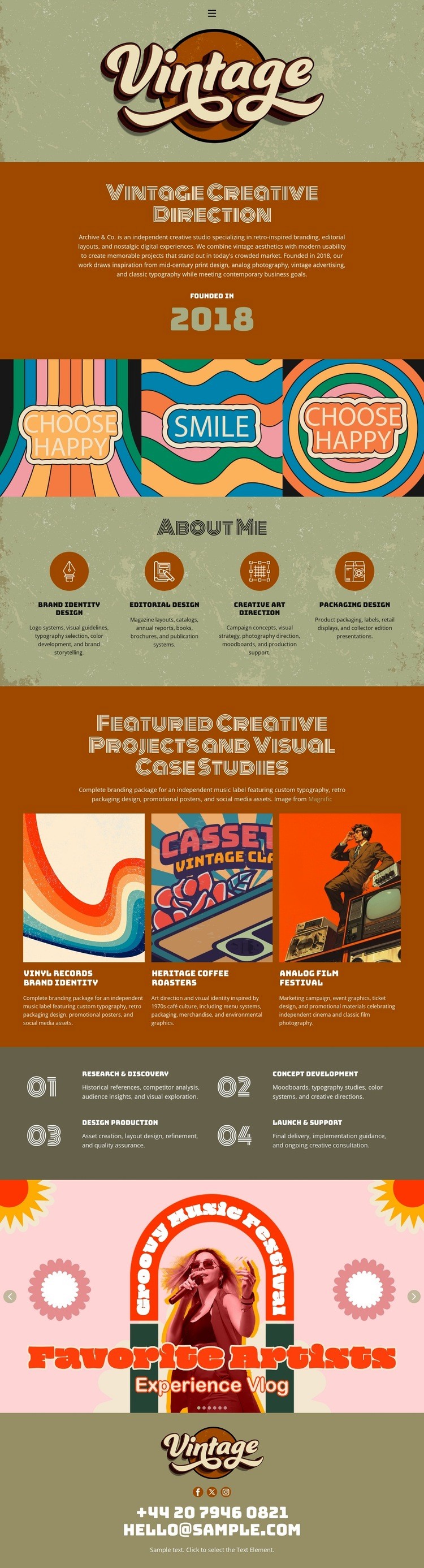
The composition changes visual density in deliberate stages. The opening rust block concentrates the logo, heading, introductory paragraph, and year display around a centered axis, creating a strong entry point. The three-panel illustrated strip then divides the width into adjacent visual units, replacing explanatory copy with repeated slogan artwork. This transition gives the page an editorial rhythm instead of allowing every section to use the same text-and-image arrangement.
About Me restores order through four evenly arranged capability items. The featured-project grid follows with three side-by-side cards and captions, creating a more functional information cluster where the visitor can compare visual case studies. The two-column process section changes the arrangement again, using four numbered items to create a directional reading path from research and discovery to launch and support. These shifts in alignment, grouping, and content density help the long composition remain varied while the warm palette and retro typography maintain continuity.
The decorative Favorite Phrases block acts as a visual transition before the centered contact footer. Coral and cream illustration there contrasts with the olive ending, so the final contact region is recognizable without needing a new layout language. As a web page design, the important relationship is between placement and meaning: centered identity, repeated artwork, organized capabilities, comparative project cards, sequential process, and a clear closing region. Nicepage’s Block Designs can support section work in other projects, but the composition described here comes from this page’s verified arrangement.
Customize with Nicepage
Open this ready-made template in the Web Page Design Builder and customize it visually in the Nicepage editor. Replace demo content, edit page sections, and adapt the design to your project without rebuilding the template from scratch.
Design a Web Page Section by Section
Choose a Design for Each Section
Build the page from individual content sections instead of starting with a fixed full-page layout. Use Block Designs to browse ready-made sections for different purposes, including introductions, services, galleries, testimonials, contact forms, pricing, and other common parts of a web page. Search or filter the available designs to find a layout that fits the content you want to add.
Combine Blocks and Page Elements
Add selected Blocks to the page and arrange them in the order that supports the page's purpose. A hero section can introduce the main message, followed by services, benefits, portfolio content, testimonials, calls to action, or contact information.
Inside each section, use Web Page Elements such as Text, Image, Hyperlink, Grid, Gallery, and other elements to build and present the page content. Individual elements can be added and adjusted within the Blocks, giving you more control over the composition of each section without having to create the complete layout from scratch.
Refine the Page Layout and Flow
After assembling the main sections, adjust their content, spacing, backgrounds, images, typography, and element placement in the Nicepage editor. Reorder Blocks when necessary and refine the transition from one section to the next so the information hierarchy and visual flow remain clear throughout the page.
This workflow makes the template useful as a web page design that can be composed from ready-made sections, customized with individual page elements, rearranged, and adapted to the content and purpose of an individual page.