Find Parking Near You Web Page Design


Edit Template Offline
2. Create new page and search for id 6547908
Edit Template Online
Create Awesome Websites


Free Nicepage Builder
Keywords
Image-Led Openings Give Way to Process and Support
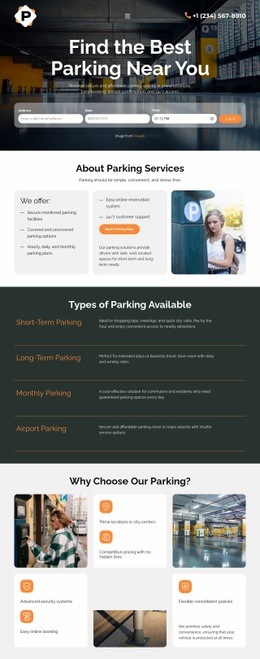
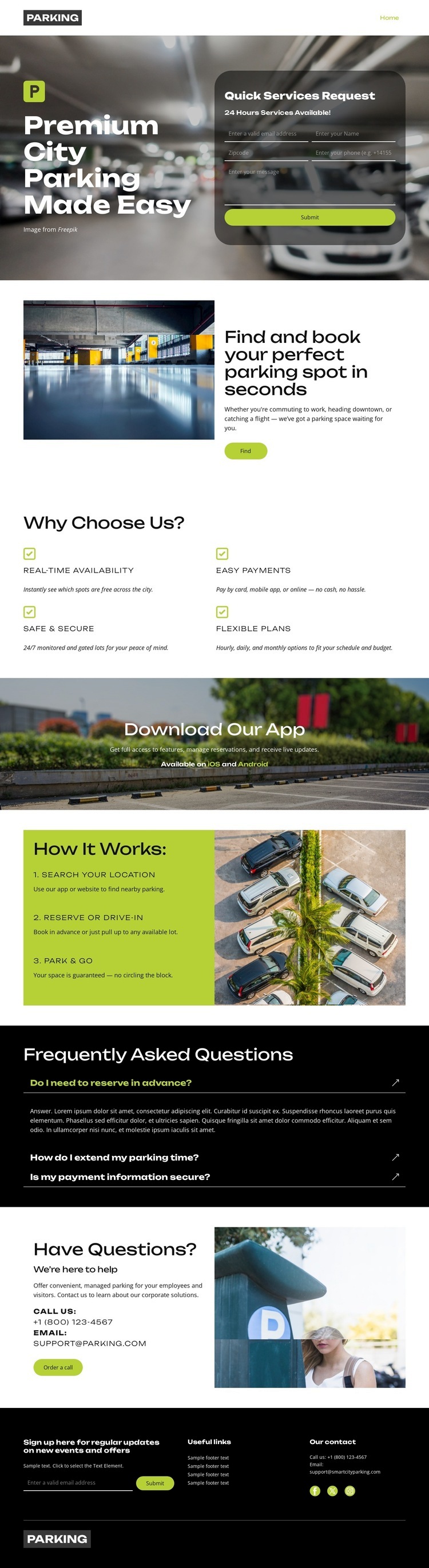
The page uses changes in scale and density to guide attention through one parking service story. The opening Text On Image block places a large parking photograph behind the main heading and request form, creating a high-impact introduction with the interaction layered over the context. The next Split block lowers the visual intensity by pairing a parking facility image with explanatory text and a Read button, allowing the search-and-book message to be understood in a more balanced composition.
The Features section changes the rhythm again. Its heading introduces four concise benefit items arranged in two columns, so real-time availability, easy payments, security, and flexible plans can be scanned as a grouped service explanation. The wide app promotion then creates a strong horizontal pause before the “How It Works” section returns to a split composition. There, the three numbered steps sit beside an aerial parking image, connecting procedural text with a clear visual setting.
The final FAQ and support sections reduce the page into more focused interaction zones. Dark FAQ rows create a compact question area with visible expand controls, while the support block balances contact prompts against a customer-support image. The footer consolidates navigation, contact details, and social icons. Together, these transitions create a readable page composition: visual context first, service explanation next, structured proof and process in the middle, then questions and assistance at the close.
Customize with Nicepage
Open this ready-made template in the Web Page Design Builder and customize it visually in the Nicepage editor. Replace demo content, edit page sections, and adapt the design to your project without rebuilding the template from scratch.
Design a Web Page Section by Section
Choose a Design for Each Section
Build the page from individual content sections instead of starting with a fixed full-page layout. Use Block Designs to browse ready-made sections for different purposes, including introductions, services, galleries, testimonials, contact forms, pricing, and other common parts of a web page. Search or filter the available designs to find a layout that fits the content you want to add.
Combine Blocks and Page Elements
Add selected Blocks to the page and arrange them in the order that supports the page's purpose. A hero section can introduce the main message, followed by services, benefits, portfolio content, testimonials, calls to action, or contact information.
Inside each section, use Web Page Elements such as Text, Image, Hyperlink, Grid, Gallery, and other elements to build and present the page content. Individual elements can be added and adjusted within the Blocks, giving you more control over the composition of each section without having to create the complete layout from scratch.
Refine the Page Layout and Flow
After assembling the main sections, adjust their content, spacing, backgrounds, images, typography, and element placement in the Nicepage editor. Reorder Blocks when necessary and refine the transition from one section to the next so the information hierarchy and visual flow remain clear throughout the page.
This workflow makes the template useful as a web page design that can be composed from ready-made sections, customized with individual page elements, rearranged, and adapted to the content and purpose of an individual page.