Start your trip almost anywhere Web Page Design



Edit Template Offline
2. Create new page and search for id 3544585
Edit Template Online
Create Awesome Websites


Free Nicepage Builder
Keywords
Overlaid Benefits Create a Strong Opening Rhythm for the Rental Page
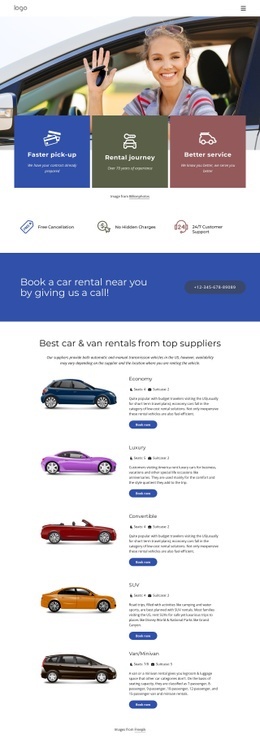
The opening composition places a large travel image behind three colored benefit cards, allowing the visual subject and the service message to appear together rather than in separate introductory blocks. That over-grid relationship gives the page an immediate focal area. The next horizontal row changes the density by presenting three concise assurances—Free Cancellation, No Hidden Charges, and 24/7 Customer Support—so the visitor moves from broad imagery to compact, scannable information.
The five-card vehicle section then expands the page into a repeated comparison rhythm. Economy, Luxury, Convertible, SUV, and Van/Minivan use image-led cards with capacity details, descriptions, and Book now actions, creating a consistent visual unit for each rental category. After that denser grid, the olive supplier-deals band and the split Rent the perfect car section restore larger areas of whitespace and contrast. The sequence prevents every section from competing at the same visual scale.
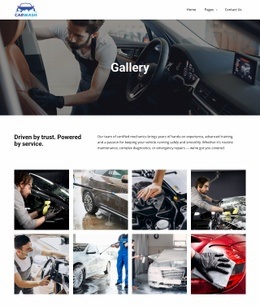
The six-image gallery introduces another change in content density, followed by centered traveler information and a Learn more action. The final promotional block returns to a focused image-and-text presentation before the three-column contact area divides booking management, WhatsApp Support, and Live Chat. This arrangement gives the individual page a readable progression from image-led introduction, through category comparison and promotional emphasis, to direct support. The displayed phone contact and booking form provide concrete closing interactions without requiring the page to be interpreted as a multi-page site.
Customize with Nicepage
Open this ready-made template in the Web Page Design Builder and customize it visually in the Nicepage editor. Replace demo content, edit page sections, and adapt the design to your project without rebuilding the template from scratch.
Design a Web Page Section by Section
Choose a Design for Each Section
Build the page from individual content sections instead of starting with a fixed full-page layout. Use Block Designs to browse ready-made sections for different purposes, including introductions, services, galleries, testimonials, contact forms, pricing, and other common parts of a web page. Search or filter the available designs to find a layout that fits the content you want to add.
Combine Blocks and Page Elements
Add selected Blocks to the page and arrange them in the order that supports the page's purpose. A hero section can introduce the main message, followed by services, benefits, portfolio content, testimonials, calls to action, or contact information.
Inside each section, use Web Page Elements such as Text, Image, Hyperlink, Grid, Gallery, and other elements to build and present the page content. Individual elements can be added and adjusted within the Blocks, giving you more control over the composition of each section without having to create the complete layout from scratch.
Refine the Page Layout and Flow
After assembling the main sections, adjust their content, spacing, backgrounds, images, typography, and element placement in the Nicepage editor. Reorder Blocks when necessary and refine the transition from one section to the next so the information hierarchy and visual flow remain clear throughout the page.
This workflow makes the template useful as a web page design that can be composed from ready-made sections, customized with individual page elements, rearranged, and adapted to the content and purpose of an individual page.