My designer profile Web Page Design


The Upper Portrait Row Leads Into Details and Counters
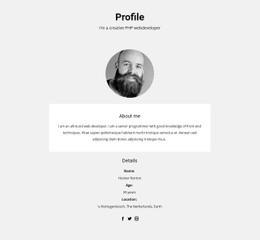
The composition creates a deliberate movement from personal introduction to supporting information. In the upper row, the large portrait occupies the left panel and carries strong visual weight, while the coral text panel on the right contains the “Hello!” heading, professional tagline, biography paragraphs, and three social links. This pairing makes the upper half the natural entry point for the profile and balances image presence with readable text.
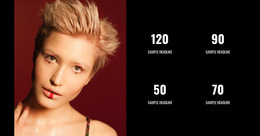
The lower row changes the density and purpose of the layout. The “Details” panel on the left gathers labeled identity and contact entries, including email, phone, and website links. On the right, four repeated counter items form a compact grid of summary information. The light-gray counter background contrasts with the coral panels, helping the lower row read as a separate layer while maintaining the same overall alignment.
Within one webpage, this block can work as a strong About or profile transition because it has a visible internal beginning, middle, and supporting close. The square-like arrangement keeps the section contained, while generous spacing prevents the four panels from collapsing into a dense information wall. When coordinated with neighboring sections, the portrait row can introduce the subject and the details row can provide the practical information visitors need next. The result is a page composition, not a complete webpage.
Customize with Nicepage
Open this ready-made template in the Web Page Design Builder and customize it visually in the Nicepage editor. Replace demo content, edit page sections, and adapt the design to your project without rebuilding the template from scratch.
Edit Template Offline
2. Create a new page or select existing
3. Click Add new block, search for id 3126958 and click enter
Edit Template Online
Create Awesome Websites


Free Nicepage Builder
Keywords
Design a Web Page With This Block as One Section
Place the Block in the Page Composition
Use Block Designs to combine individual sections into a complete page. The analyzed block contributes one part of that composition, while other sections can handle the introduction, services, proof, portfolio, pricing, contact, or other page-level needs.
Refine the Elements Inside the Block
Use Web Page Elements such as Text, Image, Hyperlink, Grid, Gallery, and other elements to refine the section's content. Adjust the existing elements without assuming that one block must carry the entire page structure.
Balance the Section With Neighboring Content
After the block is placed, refine its spacing, image scale, text density, alignment, and background treatment so the transition into and out of the section feels intentional. Reorder Blocks at the page level when necessary while keeping the internal composition of each section coherent.
This workflow treats the block as one compositional unit in a web page: internally designed, visually distinct, and coordinated with the sections around it.