Uber's Aerial Taxi Play Web Page Design


Edit Template Offline
2. Create new page and search for id 12799
Edit Template Online
Create Awesome Websites


Free Nicepage Builder
Keywords
Alternating Image and Text Blocks Control the Page Rhythm
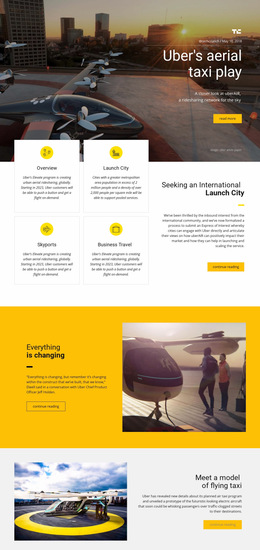
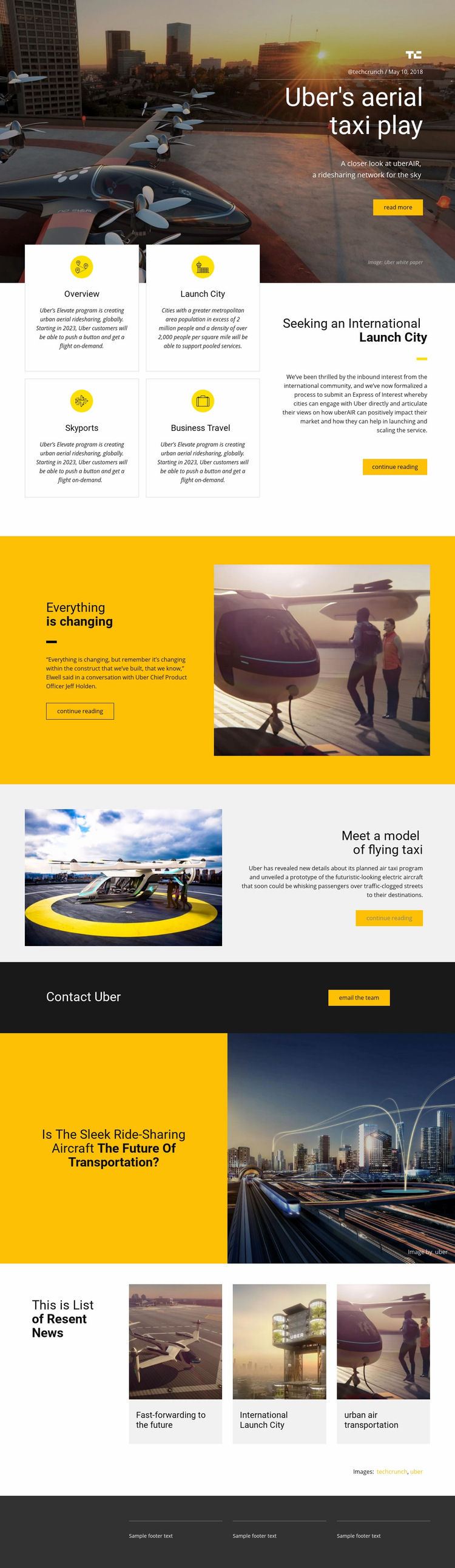
The page composition changes visual density from section to section. The opening hero uses a large city-and-aircraft image with a compact right-aligned editorial panel, so the headline and supporting details occupy a focused area against an expansive background. The following Features section becomes more informational: four bordered cards are arranged in two rows beside a larger launch-city panel, creating a shift from one featured message to a grouped content field.
The middle of the page uses alternating split compositions to prevent the long layout from becoming uniform. The yellow change section places quote content opposite a large aircraft photograph, while the light gray prototype section reverses the emphasis by leading with the image and placing concise explanatory copy on the other side. A dark horizontal contact strip then compresses the composition into a short heading and one email action. This contrast in width, color, and content density gives the page clear transitions.
The later future-of-transportation question returns to a two-part image-and-panel relationship, and the three news tiles create a regular horizontal row before the footer. Large headlines establish primary hierarchy; small labels, dates, captions, and credits supply detail at a lower level. The result is a deliberate sequence of featured content, grouped information, split explanation, contact, reflection, and related reading within one page composition.
Customize with Nicepage
Open this ready-made template in the Web Page Design Builder and customize it visually in the Nicepage editor. Replace demo content, edit page sections, and adapt the design to your project without rebuilding the template from scratch.
Design a Web Page Section by Section
Choose a Design for Each Section
Build the page from individual content sections instead of starting with a fixed full-page layout. Use Block Designs to browse ready-made sections for different purposes, including introductions, services, galleries, testimonials, contact forms, pricing, and other common parts of a web page. Search or filter the available designs to find a layout that fits the content you want to add.
Combine Blocks and Page Elements
Add selected Blocks to the page and arrange them in the order that supports the page's purpose. A hero section can introduce the main message, followed by services, benefits, portfolio content, testimonials, calls to action, or contact information.
Inside each section, use Web Page Elements such as Text, Image, Hyperlink, Grid, Gallery, and other elements to build and present the page content. Individual elements can be added and adjusted within the Blocks, giving you more control over the composition of each section without having to create the complete layout from scratch.
Refine the Page Layout and Flow
After assembling the main sections, adjust their content, spacing, backgrounds, images, typography, and element placement in the Nicepage editor. Reorder Blocks when necessary and refine the transition from one section to the next so the information hierarchy and visual flow remain clear throughout the page.
This workflow makes the template useful as a web page design that can be composed from ready-made sections, customized with individual page elements, rearranged, and adapted to the content and purpose of an individual page.