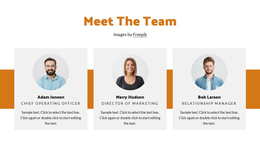
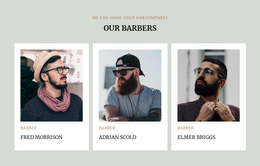
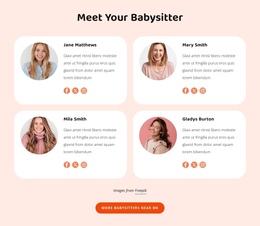
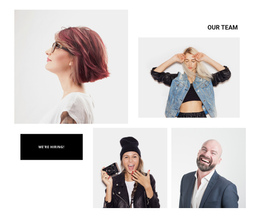
Meet our big team One Page Template


The Team Heading Defines a Distinct Page Destination
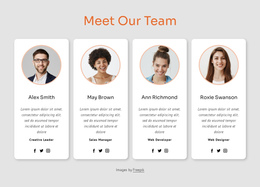
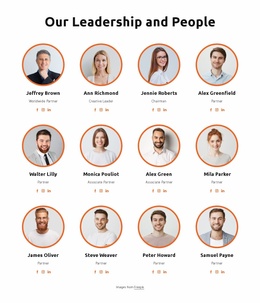
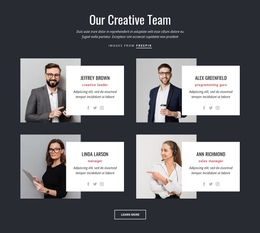
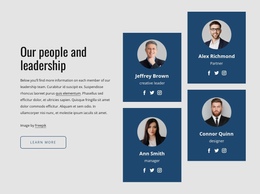
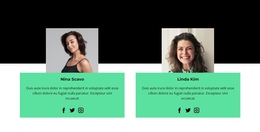
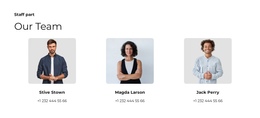
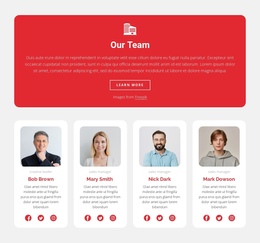
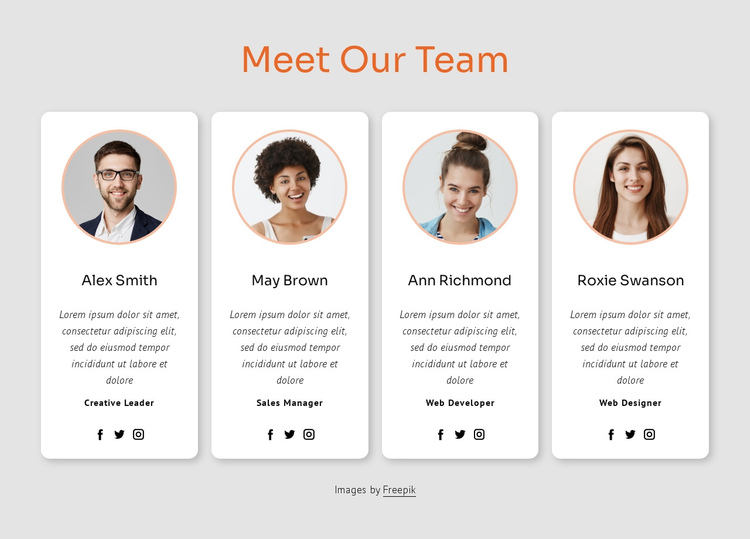
The centered “Meet Our Team” heading gives this block enough identity to function as one recognizable content destination in a continuous page. Beneath it, four profile cards present a peer group rather than a single isolated statement. Each card contains a circular portrait, name, role label, description, and Facebook, Twitter, and Instagram links, allowing the section to contribute meaningful people-focused information between other destinations such as an introduction, services, portfolio, or contact area.
The single horizontal row makes the team easy to recognize as one section when visitors move through a longer page. White rounded cards and soft shadows distinguish individual profiles, while the light gray background contains them as a group. Orange heading and portrait-border details give the destination a consistent visual marker. The image credit below the cards remains part of the section but has a quieter attribution role.
In a One Page Template context, the block supplies content for the page journey rather than a separate standalone page. It could sit after introductory information or service content and before later proof or contact content. Any navigation connection belongs to the containing page; the block itself contributes the heading, four profile destinations, social links, and visual separation needed for a clear team stop.
Customize with Nicepage
Open this ready-made template in the One Page Template Builder and customize it visually in the Nicepage editor. Replace demo content, edit page sections, and adapt the design to your project without rebuilding the template from scratch.
Edit Template Offline
2. Create a new page or select existing
3. Click Add new block, search for id 519028 and click enter
Edit Template Online
Create Awesome Websites


Free Nicepage Builder
Keywords
Build a Navigable One-Page Website
Connect the Menu to Page Sections
Organize the website as a sequence of sections on a single page and use the Menu For One-Page Site to connect menu items with individual page Blocks. Visitors can jump directly to sections such as About, Services, Testimonials, or Contact without opening separate pages.
Keep the Website on One URL
A one-page template can combine several parts of a small website within one continuous page. Arrange the Header, introduction, services, portfolio, company information, reviews, contact details, and other relevant sections in the order that fits the project while keeping them accessible through the same page navigation.
Make Long Pages Easier to Navigate
For longer one-page websites, keep navigation labels short and connected to meaningful sections so visitors can move through the page without relying only on scrolling. You can also use the Back To Top element to provide a quick way back to the beginning after longer sections.
This workflow makes the template suitable for compact websites that need several distinct content sections while keeping the complete visitor experience on one URL.

Design Set (32)
-

-
-
-
-
-
-
-
-
-
-
-
-
-
-
-
-
-
-
-
-
-
-
-
-
Build Website with no CodingDownload
-
-