Pregnancy after age 35 One Page Template



A Recognizable Topic Destination With Image Support
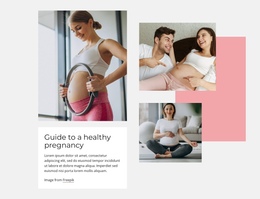
The heading “Pregnancy After Age 35” gives this block a strong identity within a continuous page, while the supporting paragraph supplies a concise introduction to the subject. The left panel groups the text and Learn More button into one readable destination. Across the split, the large pregnancy photograph of an expectant couple creates a separate visual region, making the section easy to distinguish as visitors move through a longer sequence.
Within a one-page layout, the block can separate introductory pregnancy information from later sections that provide deeper explanations, resources, or contact content. Its purpose is therefore centered on content flow and recognition: visitors can identify the topic from the heading, absorb a short context statement, and choose whether to continue through the button. The button uses a subtle blue-to-pink gradient, adding a navigation cue without overwhelming the restrained white and black design. Generous space around the compact copy helps the section breathe between neighboring blocks. The image credit remains part of the section’s internal content, while page-level navigation can be supplied by the broader one-page arrangement if needed. The block functions as one destination, not as the complete continuous page.
Customize with Nicepage
Open this ready-made template in the One Page Template Builder and customize it visually in the Nicepage editor. Replace demo content, edit page sections, and adapt the design to your project without rebuilding the template from scratch.
Edit Template Offline
2. Create a new page or select existing
3. Click Add new block, search for id 1586535 and click enter
Edit Template Online
Create Awesome Websites


Free Nicepage Builder
Keywords
Build a Navigable One-Page Website
Connect the Menu to Page Sections
Organize the website as a sequence of sections on a single page and use the Menu For One-Page Site to connect menu items with individual page Blocks. Visitors can jump directly to sections such as About, Services, Testimonials, or Contact without opening separate pages.
Keep the Website on One URL
A one-page template can combine several parts of a small website within one continuous page. Arrange the Header, introduction, services, portfolio, company information, reviews, contact details, and other relevant sections in the order that fits the project while keeping them accessible through the same page navigation.
Make Long Pages Easier to Navigate
For longer one-page websites, keep navigation labels short and connected to meaningful sections so visitors can move through the page without relying only on scrolling. You can also use the Back To Top element to provide a quick way back to the beginning after longer sections.
This workflow makes the template suitable for compact websites that need several distinct content sections while keeping the complete visitor experience on one URL.