Special connection HTML Template


A Blue Testimonial Card Ready for a Static HTML Section
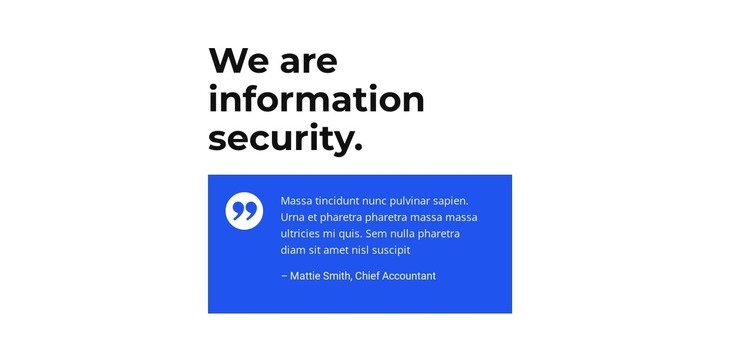
The large heading, “We are information security,” establishes the subject before the testimonial appears. Below it, one saturated blue card creates a distinct content region against the white background. The card combines a quotation-mark graphic with white text, generous padding, and an attribution line beneath the quote. This arrangement gives the supporting statement a clear visual boundary without adding a second testimonial, grid, or interactive control.
Used as a ready-made section inside a static HTML page, the block can provide a compact trust-oriented moment for an information-security presentation. Its internal content is already arranged as one heading followed by one testimonial card, so the surrounding page can supply other sections while this block retains its supporting role. The narrow centered alignment helps keep the quote readable, while the heavy heading and blue panel create a strong transition from explanatory content to human perspective. Because the interaction is static, visitors read the quote and attribution directly rather than moving through slides or expanding panels. The sample wording and attribution function as visible testimonial structure that can be replaced with the project’s own content.
Customize with Nicepage
Open this ready-made template in the HTML Builder and customize it visually in the Nicepage editor. Replace demo content, edit page sections, and adapt the design to your project without rebuilding the template from scratch.
Edit Template Offline
2. Create a new page or select existing
3. Click Add new block, search for id 2362867 and click enter
Edit Template Online
Create Awesome Websites


Free Nicepage Builder
Keywords
Export and Use This Template as an HTML Website
Create a Portable HTML Website
When the template is ready, use the HTML Export option to create a static website with the files required for deployment. The exported website can be used independently of the Nicepage editor and deployed on your preferred hosting.
Nicepage also provides SEO settings and optimization features, including Page Titles and Descriptions, Canonical settings, headings, image Alt Text, and other page-level properties that help prepare the website for search engines.
Deploy Without a CMS
Upload the finished website to the hosting environment that fits your project. Because the exported site does not require WordPress, Joomla, or another CMS to deliver its pages, it can be placed on your own server, uploaded to a hosting provider, or deployed through an existing web infrastructure.
Hand Off the Website Files
The generated website files can also be provided to a client, developer, or hosting team. They remain available outside the Nicepage editor for deployment, technical review, or project-specific development when additional work is required.
This workflow makes the template a practical foundation for a portable static website that can be exported from the Nicepage editor and deployed independently.

More from Text Blocks
-
-

-
-
-
-
-
-
-
-
-
Free Website Builder SoftwareDownload
-
-
-
-
-
-
-
-
-
-