Women’s Quran Classes Html Code Example


Edit Template Offline
2. Create new page and search for id 6659963
Edit Template Online
Create Awesome Websites


Free Nicepage Builder
Keywords
Schedule Panels and Booking Areas Create Natural Extension Points
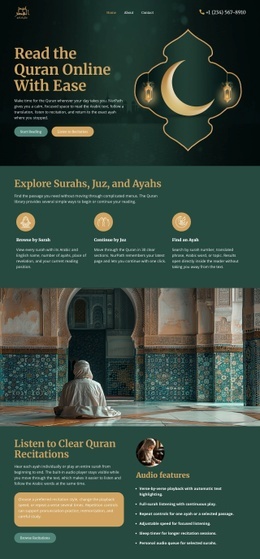
The prayer schedule, class-time panel, and closing booking section divide the page into clear functional zones. The first split section places “Today’s Prayer Schedule” beside a women’s portrait and an enrollment prompt, while the later split section pairs program information with a teal timetable. These areas already establish where visitors expect practical details, availability information, and a response action to appear.
The program introduction adds another useful content zone. Tajweed, recitation, and Hifz are presented together over mosque imagery, creating a focused place for explaining learning options without disturbing the surrounding page sequence. The four-image portrait strip provides a separate visual area that could accommodate an external gallery treatment or another project-specific presentation if the final implementation requires it. None of these observations imply that custom code is already present; they identify places where additional functionality could be introduced.
For example, a project might place custom markup beside the timetable when an external scheduling service must display availability, or extend the booking area with a project-specific integration. The existing layout gives such an extension a defined visual context: schedule-related functionality belongs near the timetable, while enrollment-related functionality belongs near the buttons and final appointment invitation. That keeps added behavior connected to the content instead of making the page feel technically disconnected.
Customize with Nicepage
Open this ready-made template in the HTML Code Generator and customize it visually in the Nicepage editor. Replace demo content, edit page sections, and adapt the design to your project without rebuilding the template from scratch.
Extend This Page With Custom HTML Code
Insert Code With the HTML Element
Use the HTML Element to add custom code directly to a Block in the Nicepage editor. Enter the required markup in the Code field when the page needs content or functionality that is not available through the standard page elements.
Place the HTML Element in the Layout
Treat the HTML Element as part of the visual page composition. Adjust its position, width, height, alignment, and margins to place the custom content where it belongs alongside text, images, buttons, and other elements. This makes it possible to combine visually edited sections with project-specific code without separating the custom element from the rest of the layout.
Add HTML, CSS, JavaScript, and External Components
The HTML Element supports HTML, CSS, and JavaScript, allowing you to extend the page with custom markup and interactive functionality. It can also be used to embed custom code and third-party components, such as social feeds, advertising code, widgets, or other external functionality required by the project.
This workflow makes the template useful for projects that need a visual page editor together with custom HTML code, JavaScript, embedded components, and functionality beyond the standard page elements.

More from Education Html Code Examples
-
Customize Any TemplateDownload