Destiny photo studio Html Code Example


Edit Template Offline
2. Create new page and search for id 33580
Edit Template Online
Create Awesome Websites


Free Nicepage Builder
Keywords
Capability Panels and Contact Areas Leave Room for Custom Extensions
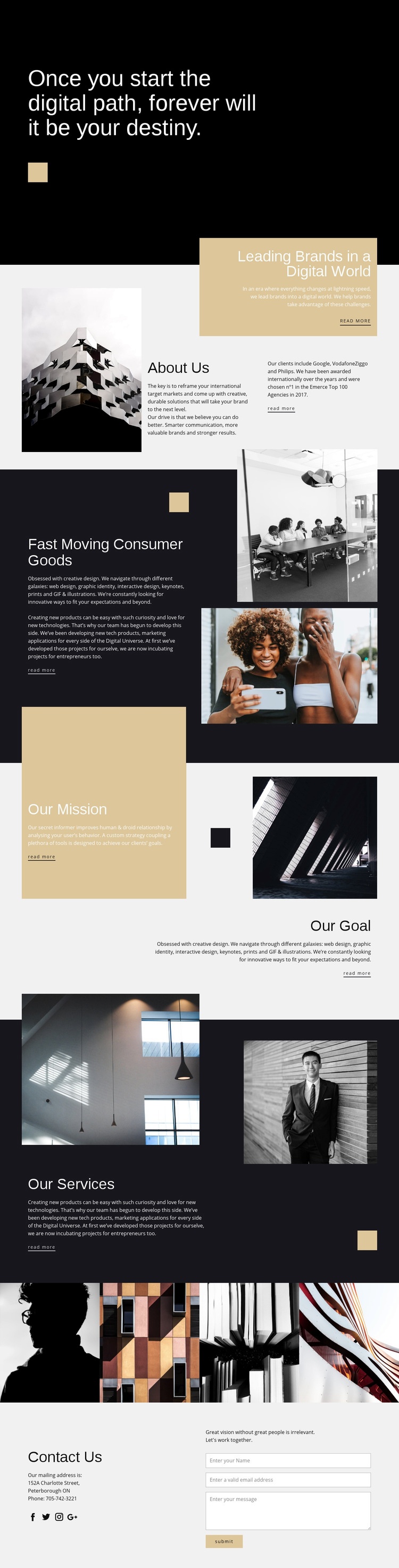
The capability section places creative-services and technology-products descriptions beside two vertically stacked photographs, while the services section uses paired images with an overlapping text panel. These areas already define clear content zones, so additional functionality can be positioned beside a relevant subject instead of forcing a new page structure. A project could, for example, extend a capability area with an external portfolio component or add a specialized presentation around a service category, provided the inserted feature matches the existing visual composition.
The four-image gallery offers another defined integration point. Because it is a separate visual interlude between the service discussion and the contact section, a project-specific media component could be considered there without confusing the relationship between service information and inquiry content. The social links and final contact area provide a different kind of extension point: external sharing, scheduling, or inquiry-related functionality could be placed near existing audience-contact elements if required.
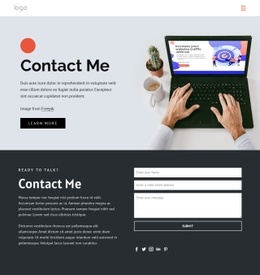
The form itself includes name, email, and message inputs, giving custom functionality a clear relationship to visitor inquiries. Nicepage’s HTML Element can support external code when the standard page elements do not cover a project requirement, but the important advantage here is the template’s existing zoning. Its panels, image areas, gallery, social links, and form make it possible to add functionality selectively while preserving the editorial page sequence.
Customize with Nicepage
Open this ready-made template in the HTML Code Generator and customize it visually in the Nicepage editor. Replace demo content, edit page sections, and adapt the design to your project without rebuilding the template from scratch.
Extend This Page With Custom HTML Code
Insert Code With the HTML Element
Use the HTML Element to add custom code directly to a Block in the Nicepage editor. Enter the required markup in the Code field when the page needs content or functionality that is not available through the standard page elements.
Place the HTML Element in the Layout
Treat the HTML Element as part of the visual page composition. Adjust its position, width, height, alignment, and margins to place the custom content where it belongs alongside text, images, buttons, and other elements. This makes it possible to combine visually edited sections with project-specific code without separating the custom element from the rest of the layout.
Add HTML, CSS, JavaScript, and External Components
The HTML Element supports HTML, CSS, and JavaScript, allowing you to extend the page with custom markup and interactive functionality. It can also be used to embed custom code and third-party components, such as social feeds, advertising code, widgets, or other external functionality required by the project.
This workflow makes the template useful for projects that need a visual page editor together with custom HTML code, JavaScript, embedded components, and functionality beyond the standard page elements.

More from Art & Design Html Code Examples
-
Customize Any TemplateDownload