Start using our app for free Html Code Example


The Email Form Leaves Room for Focused Extensions
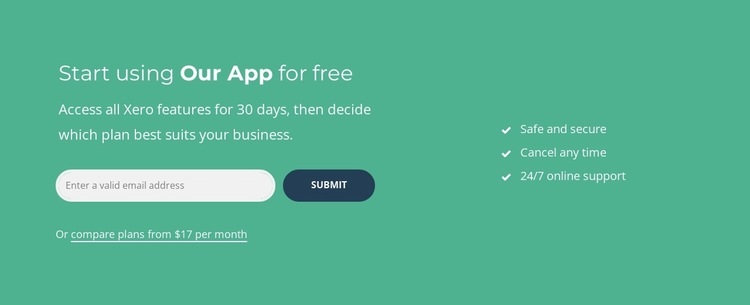
The left column already establishes a complete signup path within the section: an invitation to start using the app, supporting copy about 30 days of feature access, an email field, a Submit button, and a link to compare plans from $17 per month. The right column balances that action with three concise benefit statements: Safe and secure, Cancel any time, and 24/7 online support. Together, these regions give a custom-code project clearly defined content areas rather than an undifferentiated canvas.
If the project requires functionality beyond the existing subscription form, the form region can act as a logical extension point for project-specific markup or an external service connection. For example, an implementation could place an additional consent notice, an account-checking element, or a plan-selection interface near the existing email field, provided that the added content supports the same signup purpose. The plan comparison link also creates a separate destination for more detailed pricing information, so an extension does not need to overload the benefit column.
The teal-green full-width background and white text keep the section visually unified, while the dark blue rounded button provides a recognizable response point. Custom HTML can therefore be added around the established form and benefit relationship without replacing the block’s two-column message or implying that code is already part of the section.
Customize with Nicepage
Open this ready-made template in the HTML Code Generator and customize it visually in the Nicepage editor. Replace demo content, edit page sections, and adapt the design to your project without rebuilding the template from scratch.
Edit Template Offline
2. Create a new page or select existing
3. Click Add new block, search for id 2863652 and click enter
Edit Template Online
Create Awesome Websites


Free Nicepage Builder
Keywords
Extend This Page With Custom HTML Code
Insert Code With the HTML Element
Use the HTML Element to add custom code directly to a Block in the Nicepage editor. Enter the required markup in the Code field when the page needs content or functionality that is not available through the standard page elements.
Place the HTML Element in the Layout
Treat the HTML Element as part of the visual page composition. Adjust its position, width, height, alignment, and margins to place the custom content where it belongs alongside text, images, buttons, and other elements. This makes it possible to combine visually edited sections with project-specific code without separating the custom element from the rest of the layout.
Add HTML, CSS, JavaScript, and External Components
The HTML Element supports HTML, CSS, and JavaScript, allowing you to extend the page with custom markup and interactive functionality. It can also be used to embed custom code and third-party components, such as social feeds, advertising code, widgets, or other external functionality required by the project.
This workflow makes the template useful for projects that need a visual page editor together with custom HTML code, JavaScript, embedded components, and functionality beyond the standard page elements.

More from Contact Form Blocks
-
-

-
-
-
-
-
-
-
-
-
Customize Any TemplateDownload
-
-
-
-
-
-
-
-
-
-