To build a legacy of excellence Html Code Example



Separate Company Areas Leave Room for Targeted Extensions
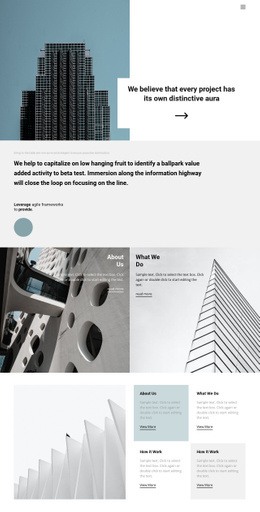
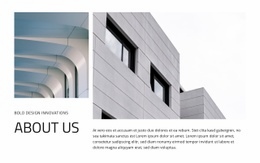
The upper construction image and its overlapping Building Company card establish the section’s main informational region, while the lower About Us panel and adjacent building photograph form a second region. That separation creates logical places for project-specific additions if the surrounding page later needs functionality beyond the existing text, images, and links. An extension could remain near the relevant company-information area rather than disrupting the visual relationship between the card and its supporting photograph.
The existing learn more link already provides a simple outward path from the About Us panel, while the primary card includes an image credit link. Those links should remain part of the block’s established content purpose. If a project requires an external information widget, a custom data element, or another integration, the two bounded content areas provide clearer placement choices than treating the whole composition as one undifferentiated surface. The construction-worker image can continue carrying visual context behind the first card, and the building image can remain paired with the lower explanation.
In an HTML Code context, the value lies in extending a real section carefully. Custom markup may support a project-specific need around the company information, but it should complement the verified static composition rather than imply that custom JavaScript or another component is already present.
Customize with Nicepage
Open this ready-made template in the HTML Code Generator and customize it visually in the Nicepage editor. Replace demo content, edit page sections, and adapt the design to your project without rebuilding the template from scratch.
Edit Template Offline
2. Create a new page or select existing
3. Click Add new block, search for id 154690 and click enter
Edit Template Online
Create Awesome Websites


Free Nicepage Builder
Keywords
Extend This Page With Custom HTML Code
Insert Code With the HTML Element
Use the HTML Element to add custom code directly to a Block in the Nicepage editor. Enter the required markup in the Code field when the page needs content or functionality that is not available through the standard page elements.
Place the HTML Element in the Layout
Treat the HTML Element as part of the visual page composition. Adjust its position, width, height, alignment, and margins to place the custom content where it belongs alongside text, images, buttons, and other elements. This makes it possible to combine visually edited sections with project-specific code without separating the custom element from the rest of the layout.
Add HTML, CSS, JavaScript, and External Components
The HTML Element supports HTML, CSS, and JavaScript, allowing you to extend the page with custom markup and interactive functionality. It can also be used to embed custom code and third-party components, such as social feeds, advertising code, widgets, or other external functionality required by the project.
This workflow makes the template useful for projects that need a visual page editor together with custom HTML code, JavaScript, embedded components, and functionality beyond the standard page elements.


















More from Architecture & Building Blocks
-

-

-
-
-
-
-
-
-
-
-
Customize Any TemplateDownload
-
-
-
-
-
-
-
-
-
-













More from Layered Images Blocks
-

-
-
-
-
-
-
-
-
-
-
Customize Any TemplateDownload
-
-
-
-
-
-
-
-
-
-