Child education Html Code Example


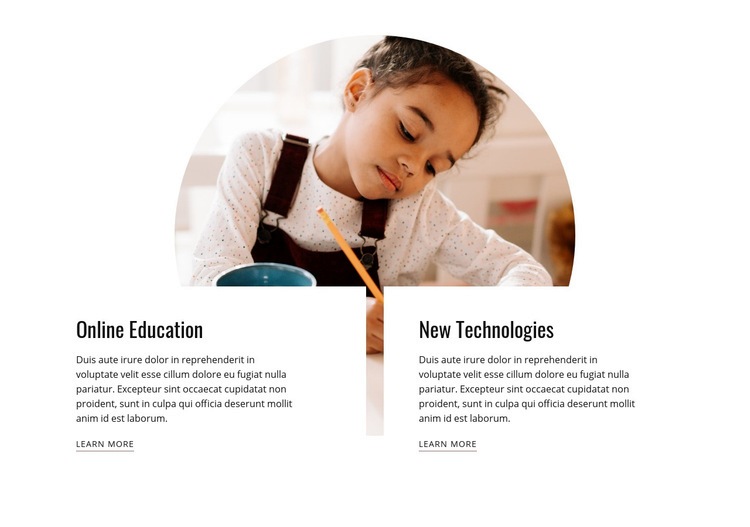
Two Topic Items Leave Clear Space for Optional Extensions
The Online Education and New Technologies items already define the block’s core content regions. Each has a title, supporting paragraph, and learn-more link, while the large circular child-focused photograph sits above and between them as a shared visual introduction. The arrangement separates the two topics without making either one compete with the other, so an optional project-specific element could be placed near the relevant topic or alongside the image while preserving the existing relationship.
For HTML Code use, the useful extension point is the boundary around these established content areas. A project might require an external information widget, a custom tracking element, or another small function associated with one education topic. Such an addition should remain secondary to the two existing text items and should not replace their headings, descriptions, or links. The block’s white field, black typography, and restrained orange accents also provide a clear visual frame for custom content that needs to sit beside the original design.
This makes the section a practical starting point for controlled markup extensions: the content is already divided into recognizable regions, the image supplies a strong reference point, and the paired links preserve the block’s original onward path.
Customize with Nicepage
Open this ready-made template in the HTML Code Generator and customize it visually in the Nicepage editor. Replace demo content, edit page sections, and adapt the design to your project without rebuilding the template from scratch.
Edit Template Offline
2. Create a new page or select existing
3. Click Add new block, search for id 145962 and click enter
Edit Template Online
Create Awesome Websites


Free Nicepage Builder
Keywords
Extend This Page With Custom HTML Code
Insert Code With the HTML Element
Use the HTML Element to add custom code directly to a Block in the Nicepage editor. Enter the required markup in the Code field when the page needs content or functionality that is not available through the standard page elements.
Place the HTML Element in the Layout
Treat the HTML Element as part of the visual page composition. Adjust its position, width, height, alignment, and margins to place the custom content where it belongs alongside text, images, buttons, and other elements. This makes it possible to combine visually edited sections with project-specific code without separating the custom element from the rest of the layout.
Add HTML, CSS, JavaScript, and External Components
The HTML Element supports HTML, CSS, and JavaScript, allowing you to extend the page with custom markup and interactive functionality. It can also be used to embed custom code and third-party components, such as social feeds, advertising code, widgets, or other external functionality required by the project.
This workflow makes the template useful for projects that need a visual page editor together with custom HTML code, JavaScript, embedded components, and functionality beyond the standard page elements.














More from Education Blocks
-

-

-
-
-
-
-
-
-
-
-
Customize Any TemplateDownload
-
-
-
-
-
-
-
-
-
-















More from Grid Repeater Blocks
-

-
-
-
-
-
-
-
-
-
-
Customize Any TemplateDownload
-
-
-
-
-
-
-
-
-
-